Filter by Patient
Filter and display cases by patient name. You can create a list by filtering only the patients you need to work on.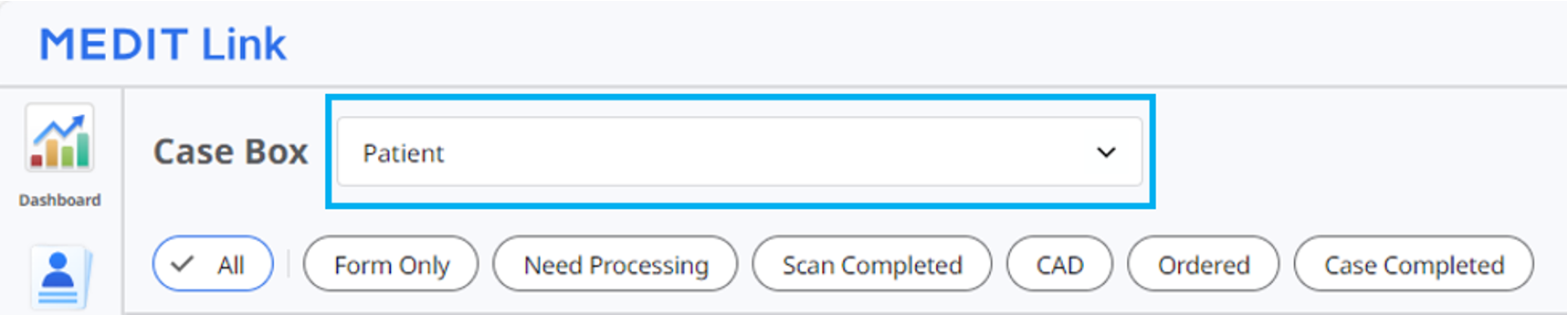
Enter a patient name.
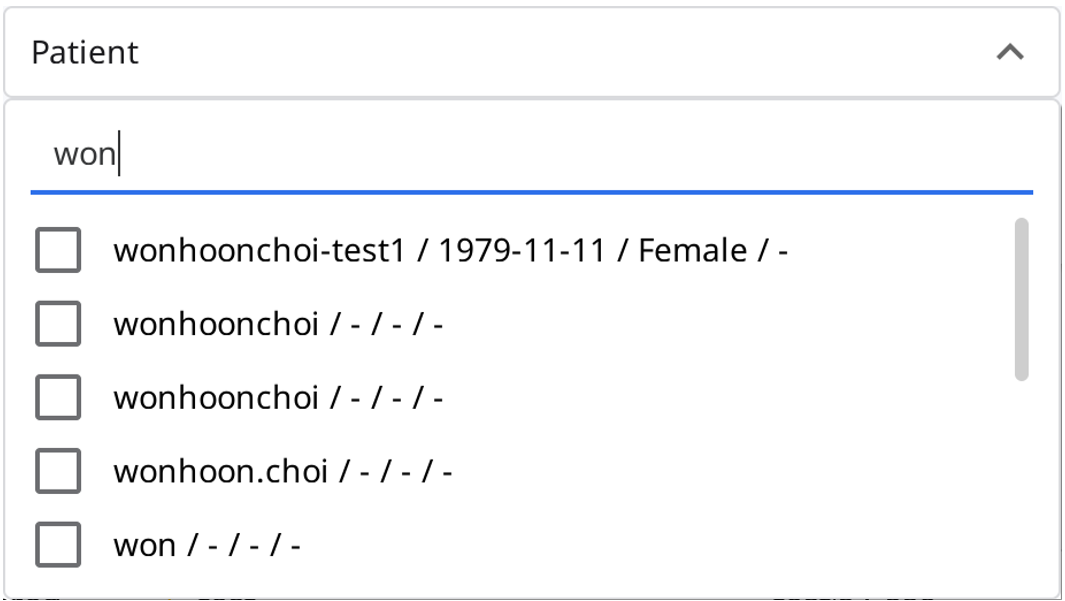
Select the patients among the search results below.
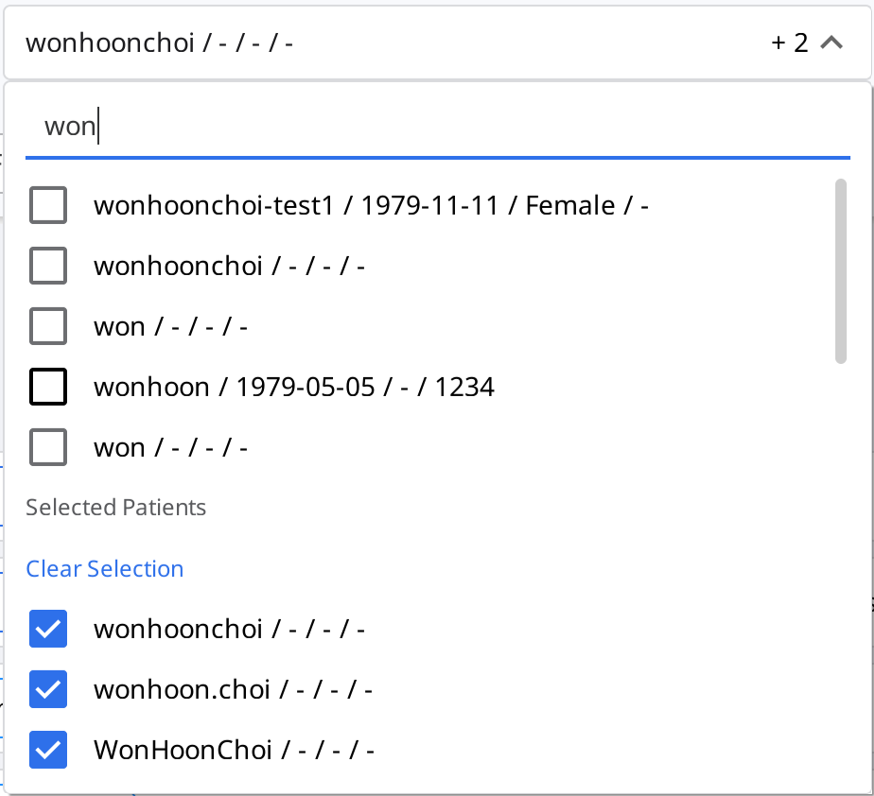
Only cases of the selected patients are displayed on the list.
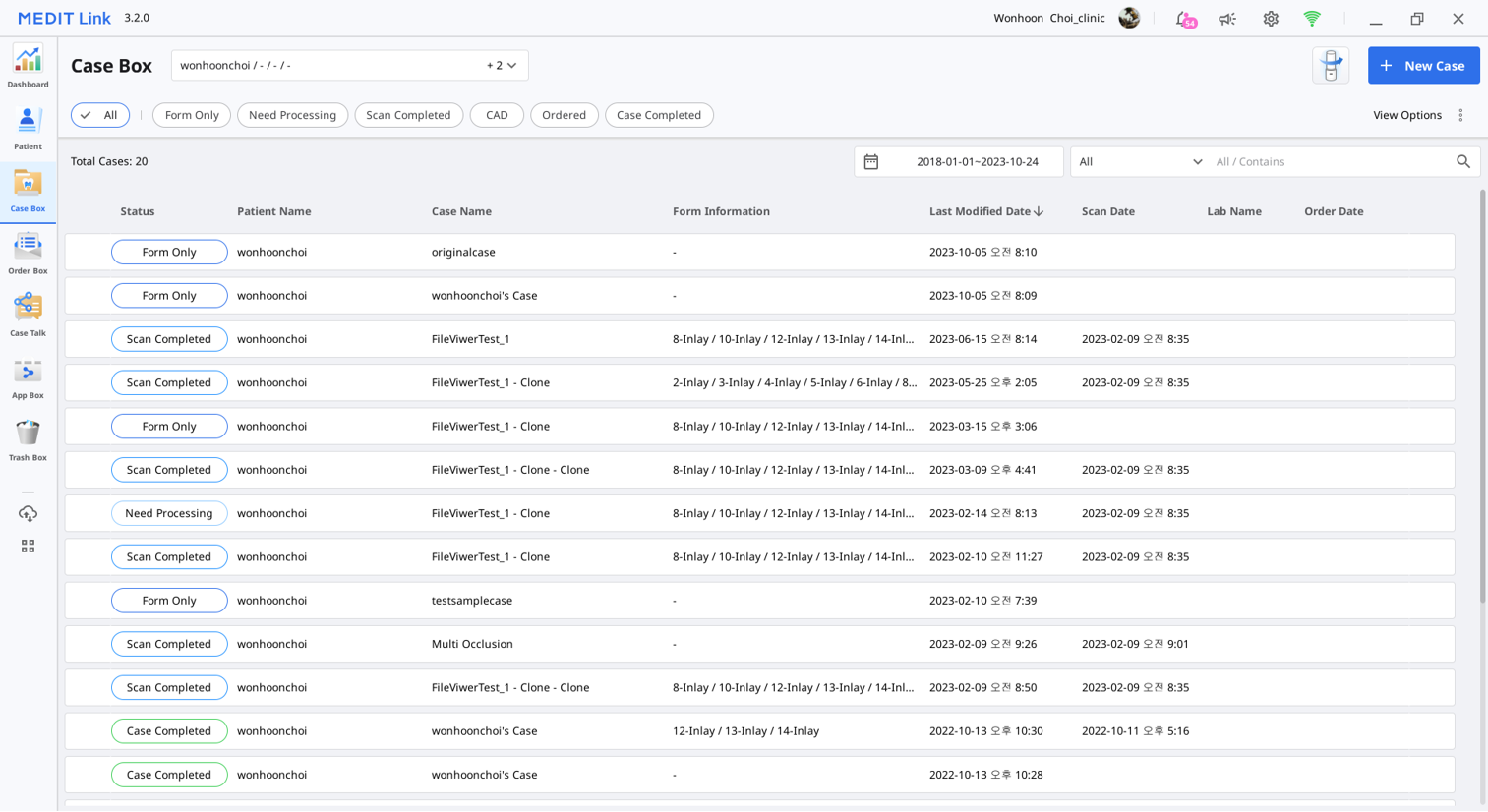
Filter by Date
Filter and display cases last modified within the set duration.
Click the duration filter.

Select the duration from the list.
All: Shows all cases.
Custom Range: Specify the start and end dates to display cases last modified within the period.
Today: Show the cases last modified today.
Yesterday: Show the cases last modified yesterday.
Last 7 days: Show the cases last modified during the previous 7 days excluding today.
Last 30 days: Show the cases last modified during the previous 30 days excluding today.
Last 90 days: Show the cases last modified during the previous 90 days excluding today.
Current Month: Show the cases last modified during this month.
Previous Month: Show the cases modified during the last month.
The case list will be updated in real time with the cases created or last modified within the selected duration.
Advanced Search Capabilities
Leverage search capabilities to quickly find the information you want.
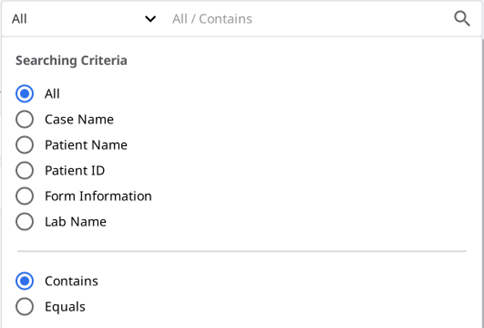
The following Searching Criteria are available for each box:
Patient | All, Patient Name, Patient ID |
Case Box | All, Case Name, Patient Name, Patient ID, Form Information, Lab Name |
Order Box | All, Case Name, Patient Name, Patient ID, Lab Name, Order ID |
In Box | All, Case Name, Patient Name, Clinic Name, Order ID |
Work Box | All, Case Name, Patient Name, Form Information, Clinic Name, Order ID |
Case Talk | Case Talk Name (Contains), Patient Name (Equals) |
Trash Box (Clinic) | All, Case Name, Patient Name, Lab Name, Deleted By |
Trash Box (Lab) | All, Case Name, Patient Name, Clinic Name, Deleted By |
You can select the Searching Criteria and choose between the Contains and Equals logic.