You can change the Table Options to customize the layouts of the case list in the Patient/Case Box/Work Box/In Box/Order Box.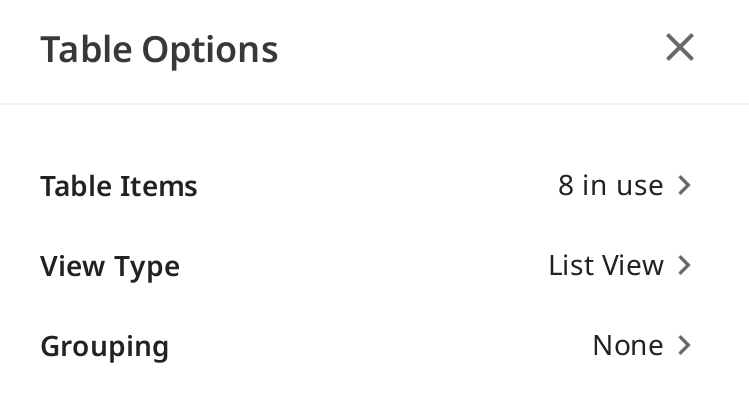
Status Filters
Show or hide each filter representing the status of the case. The hidden status filters are not displayed on the screen in the Case Box/Work Box/In Box/Order Box.
You can easily find the case you need with status filters.
You can click the status you want to view to display only cases in that state.
You can select multiple statuses at a time.
For each box, the following filtering options are available:
Box | Status Filters |
|---|---|
Case Box | All / Form Only / Need Processing / Scan Completed / CAD / Ordered / Case Completed |
Order Box | All / Pending / Canceled / Rejected / Accepted / Shipped / Case Completed |
In Box | All / Pending / Canceled / Rejected / Accepted / Ready / Shipped / Case Completed |
Work Box | All / Form Only / Need Processing / Scan Completed / CAD / Done |
Table Items
Select the items to display in the case list in the Patient/Case Box/Work Box/In Box/Order Box. You can change the order of table items or adjust the table column width in the list view to best optimize for the user environment.
For each box, the following table items are available:
Box | Table Items |
|---|---|
Patient | Patient Name / Patient ID / Gender / Number of Cases / Registration Date / Date of Birth / Last Scanned Date / Last Modified Date |
Case Box | Status / Case Name / Date of Birth / Form Information / Last Modified Date / Scanned Date / Order Date / Lab Name / Modified By / Case Creation Date / Created By / Patient Name / Assignee |
Order Box | Status / Case Name / Patient Name / Scanned Date / Order Date / Lab Name / Requested Delivery Date / Order ID / Last Modified Date / Assignee |
In Box | Status / Case Name / Order Date / Requested Delivery Date / Last Modified Date / Clinic Name |
Work Box | Status / Case Name / Patient Name / Form Information / Last Modified Date / Requested Delivery Date / Scanned Date / Clinic Name / Order Date |
View Type
Change the view type between the Gallery View and List View on the Case Box.
For each box, the following view type options are available:
Box | View Type Options |
|---|---|
Patient | List View |
Case Box | List View / Gallery View |
Order Box | List View |
In Box | List View |
Work Box | List View |
Grouping
Select a grouping option to classify and rearrange cases in the list by the selected option.
For each box, the following grouping options are available:
Box | Grouping Options |
|---|---|
Case Box | None / Patient Name / Scanned Date / Order Date |
Order Box | None / Scanned Date / Order Date / Requested Delivery Date |
In Box | None / Order Date / Requested Delivery Date |
Work Box | None / Requested Delivery Date |
🔎Note
The grouping options are unavailable in the Patient, Case Talk, and Trash Box.
Sorting
Select a sorting option to change the order of cases in the list according to the selected option.
For each box, the following sorting options are available:
Box | Grouping | Sorting Options |
|---|---|---|
Patient | - | Patient Name / Patient ID / Date of Birth / Registration Date / Number of Cases / Last Scanned Date / Last Modified Date |
Case Box | None | Patient Name / Last Modified Date / Scanned Date/ Order Date / Lab Name / Created By / Case Creation Date/ Modified By |
Patient Name | Last Modified Date / Scanned Date / Order Date / Lab Name / Created By / Case Creation Date/ Modified By | |
Scan Date | Patient Name / Last Modified Date / Order Date / Scanned Date / Lab Name / Created By / Case Creation Date/ Modified By | |
Order Date | Patient Name / Last Modified Date / Order Date / Scanned Date / Lab Name / Created By / Case Creation Date/ Modified By | |
Order Box | None | Patient Name / Scanned Date / Order Date/ Requested Delivery Date / Lab Name / Last Modified Date |
Scan Date | Patient Name / Order Date / Requested Delivery Date / Lab Name / Scanned Date / Last Modified Date | |
Order Date | Patient Name / Order Date / Scanned Date / Requested Delivery Date / Lab Name / Last Modified Date | |
Requested Delivery Date | Patient Name / Scanned Date / Order Date / Lab Name / Requested Delivery Date / Last Modified Date | |
In Box | None | Patient Name / Order Date / Requested Delivery Date / Clinic Name |
Order Date | Patient Name / Scanned Date / Requested Delivery Date / Clinic Name | |
Requested Delivery Date | Patient Name / Order Date / Clinic Name | |
Work Box | None | Patient Name / Last Modified Date / Requested Delivery Date / Clinic Name |
Requested Delivery Date | Patient Name / Last Modified Date / Clinic Name |
🔎Note
The sorting options are unavailable in the Case Talk and Trash Box.