Paid Feature
This feature requires a paid subscription.
Realtime Intelligence automatically identifies prepared teeth in the scan data and reviews both the full scan and the preparation areas against key requirements for restorative cases. It provides immediate, easy-to-understand feedback, allowing users to assess data quality in real time and make on-the-spot adjustments to support more accurate design work later.
When scanning stops, the program automatically checks for prepared teeth. If any are detected, the preparation and scan data review is performed, and several HD images of the target teeth are captured. If no prepared teeth are identified, only the scan data review is performed. Based on the preparation and scan data review results, the program suggests additional review actions to help ensure scan completeness and adequate preparation for restorative cases.
Realtime Intelligence is supported exclusively for crown, inlay/onlay, bridge cases and is not applicable to veneer cases. Therefore, the feature icon is not available in stages other than the Pre-Op Stage, Maxilla/Mandible Stage, and Occlusion Stage.
The table below summarizes the review categories, suggested review actions, and their corresponding explanations.
Review Category | Review Action | Details |
|---|---|---|
Clearance | Verify Occlusal Space | Measures the distance to the opposing teeth to verify that sufficient space is available for prosthesis fabrication. Default threshold can be set in the Settings > Preparation Review. |
Verify Interproximal Space | Checks the distance to adjacent structures to verify that sufficient space has been created for prosthesis fabrication. Default threshold can be set in the Settings > Preparation Review. | |
Verify Reduction Depth | Compares pre- and post-preparation to determine how much additional reduction is needed based on the ideal thickness of the prosthesis. Default threshold can be set in the Settings > Preparation Review. | |
Preparation | Correct Undercuts | Displays undercuts based on the automatic insertion axis. Blue-highlighted areas indicate regions where interference may occur during prosthesis insertion. |
Inspect Margin Line | Visually represents the convexity, concavity, and roughness around the margin line. This helps re-evaluate the margin line and assess the smoothness and uniformity of the preparation surface in the margin area. Areas closer to red indicate more convex regions, while areas closer to blue indicate more concave regions. | |
Occlusion | Check Occlusion Balance | Checks distances and contact points across the bite to detect contact interferences and possible uneven force distribution. |
Analyze Occlusal Patterns | Compares occlusion before and after preparation. | |
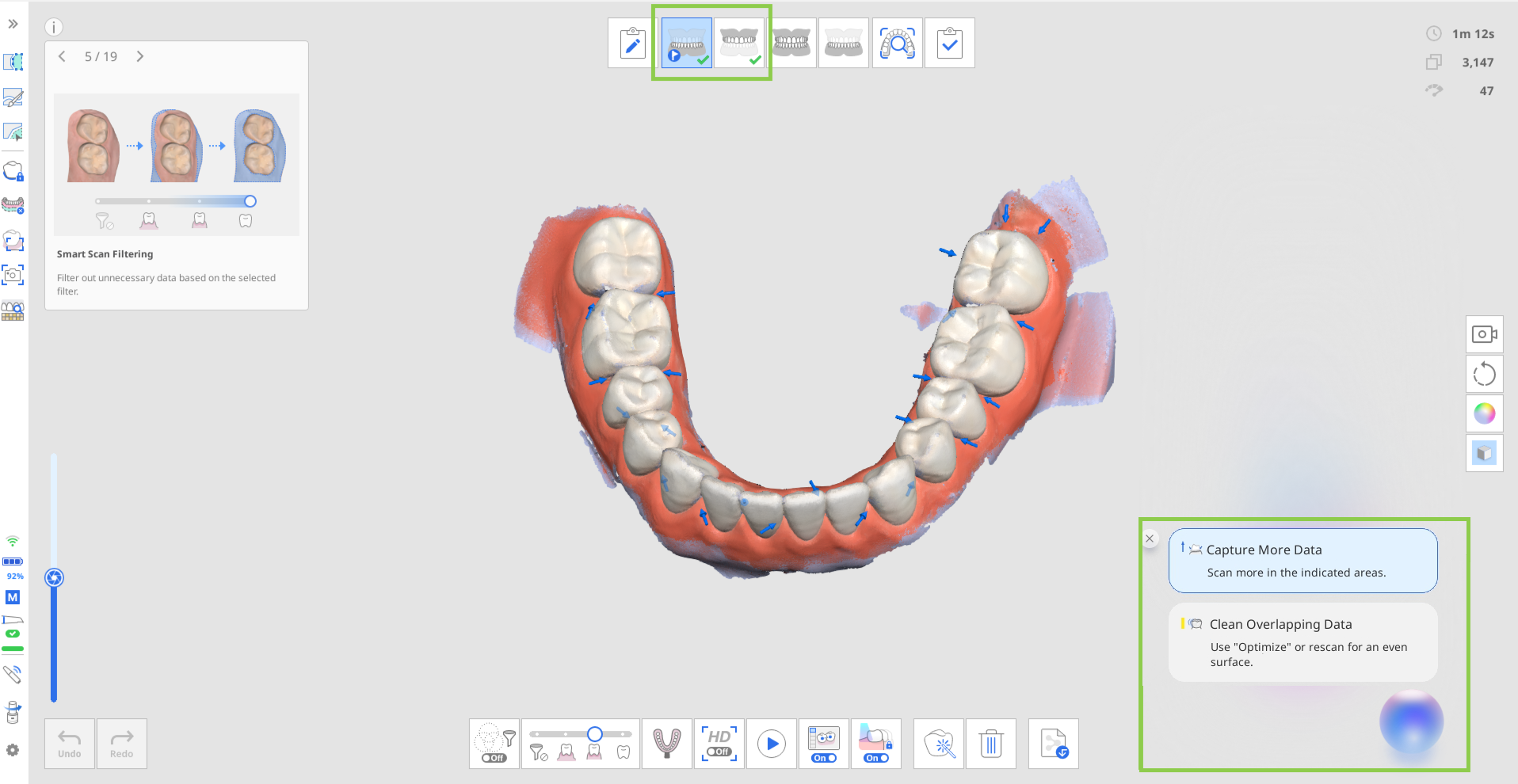
Scan Data | Capture More Data | Indicates areas with insufficient scan data. After the prepared teeth are detected, the review focuses on clinically relevant regions, including the prepared teeth and 1–2 adjacent teeth. Rescan the highlighted areas to ensure complete and accurate scan data. |
Clean Overlapping Data | Indicates areas with overlapping (multilayered) scan data, which may be caused by blood, saliva, tooth movement, or improper scanning technique. Users can delete affected areas and rescan, or use “Optimize” to realign and review the data. Once prepared teeth are detected, the review focuses on clinically relevant regions, including the prepared teeth and their 1–2 adjacent teeth. If no prepared teeth are detected, layered data is displayed across the entire dental arch. | |
HD Images | Auto Capture | Captures up to 5 images per prepared tooth from multiple directions - occlusal, buccal, lingual, mesial, and distal. |
Manual Capture | In the Smart Scan Review stage, users can review live-view images captured during scanning and create HD captures of any desired area by clicking on it after enabling “Manual Capture” in the bottom-right corner. |
🔎Notes
Clearance-related information is displayed when values fall below the default threshold set in the introductory dialog window. This threshold can be adjusted in Settings. Areas below the threshold are highlighted in red; hover over these areas to view the exact distance.
Review results can be used as a reference when cleaning up data with the Trimming Tools (Quick Trimming).
Manual Captures are available only if the Smart Scan Review stage is included in the workflow.
Available on the iE scanner with a separate subscription.
⚠️Caution
The visibility of some review results may vary depending on the scan stage order. To ensure these results are displayed correctly, follow the recommended workflow setup.
Recommended Workflow Setup
The display of the above review items depends on the availability of pre-operative and occlusion scan data. Therefore, when using this feature, follow the recommended scan stage configuration to obtain more comprehensive results and ensure a smoother workflow. Note that if you customize the workflow differently, some review items may not be considered by the program, and the feature icon may not appear in certain scan stages.
For cases with pre-op data, place the scan stage with the target prepared tooth (Maxilla/ Mandible) at the end of the workflow.
Examples: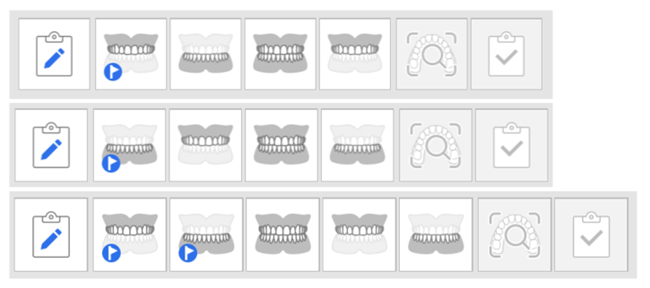
For cases without pre-op data, place the Occlusion Stage at the end of the workflow.
Examples: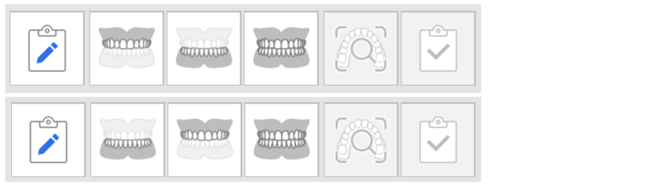
🔎Notes
This feature is also available in the Simple UI mode.
When using SmartX Workflow, Realtime Intelligence is not supported and cannot be used simultaneously.
Data Review Criteria
For the most reliable review results, make sure the minimum required number of capture shots is collected before performing a data review.
Scanning can be performed on one or both arches, and the system automatically identifies the scan type.
If the minimum number of shots has not been reached, you can still perform a review by clicking “Analyze Anyway".” However, additional scan data may be required for a more reliable review.
Scanner Model | Scanning Experience | Full Arch | Partial Arch |
|---|---|---|---|
i900 Mobility / i900 classic / i900 / i700 wireless / i700 | Fast & Furious | At least 2,500 shots | At least 1,500 shots |
i900 Mobility / i900 classic / i900 / i700 wireless / i700 / i600 | Smooth & Steady | At least 1,500 shots | At least 800 shots |
⚠️Caution
The minimum number of required data capture shots is subject to change without prior notice.
How to Use Realtime Intelligence
If subscribed, the feature can be controlled in Settings > Scan Data Analysis > Enable Realtime Intelligence. When enabled, the feature status icon appears in color in the title bar.
The feature’s main icon appears in the bottom-right corner at each scan stage. Click it to show or hide the review content and guide messages.
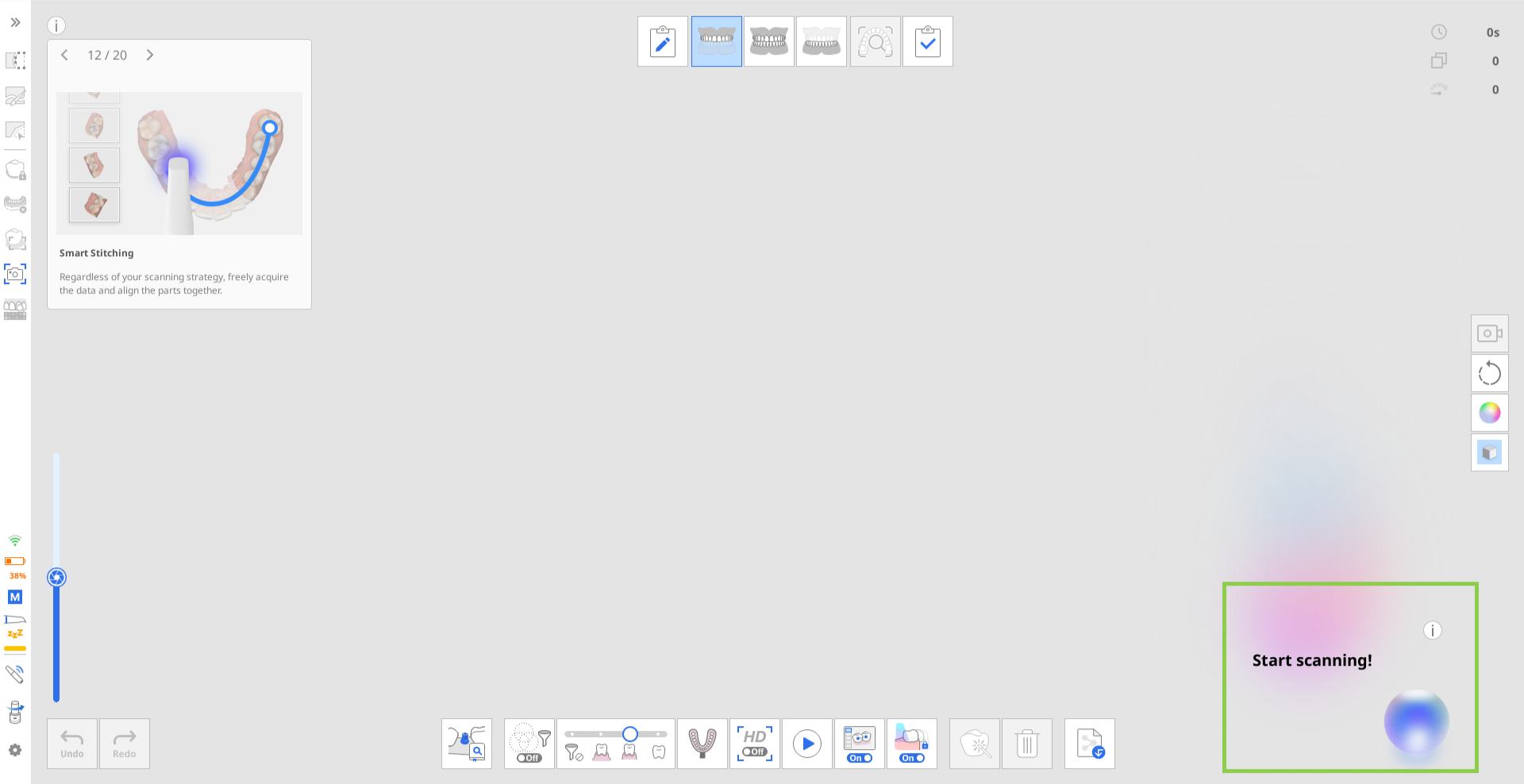
Realtime Intelligence operates on the same core principles regardless of the chosen workflow setup. To illustrate the process, this guide uses the example of a mandibular crown case where pre-operative dental data is available for scanning.
In this scenario, the scan stages are performed in the following order as suggested by recommendations given above: Pre-Op for Mandible → Maxilla → Occlusion → Mandible

Example Workflow Sequence
Acquiring the pre-operational and antagonist data
Once scanning stops, the scan data review begins automatically. During this step, only scan review items are displayed in the bottom-right corner. Review the results and feedback, and adjust the scan data as needed.
Acquiring the occlusion data
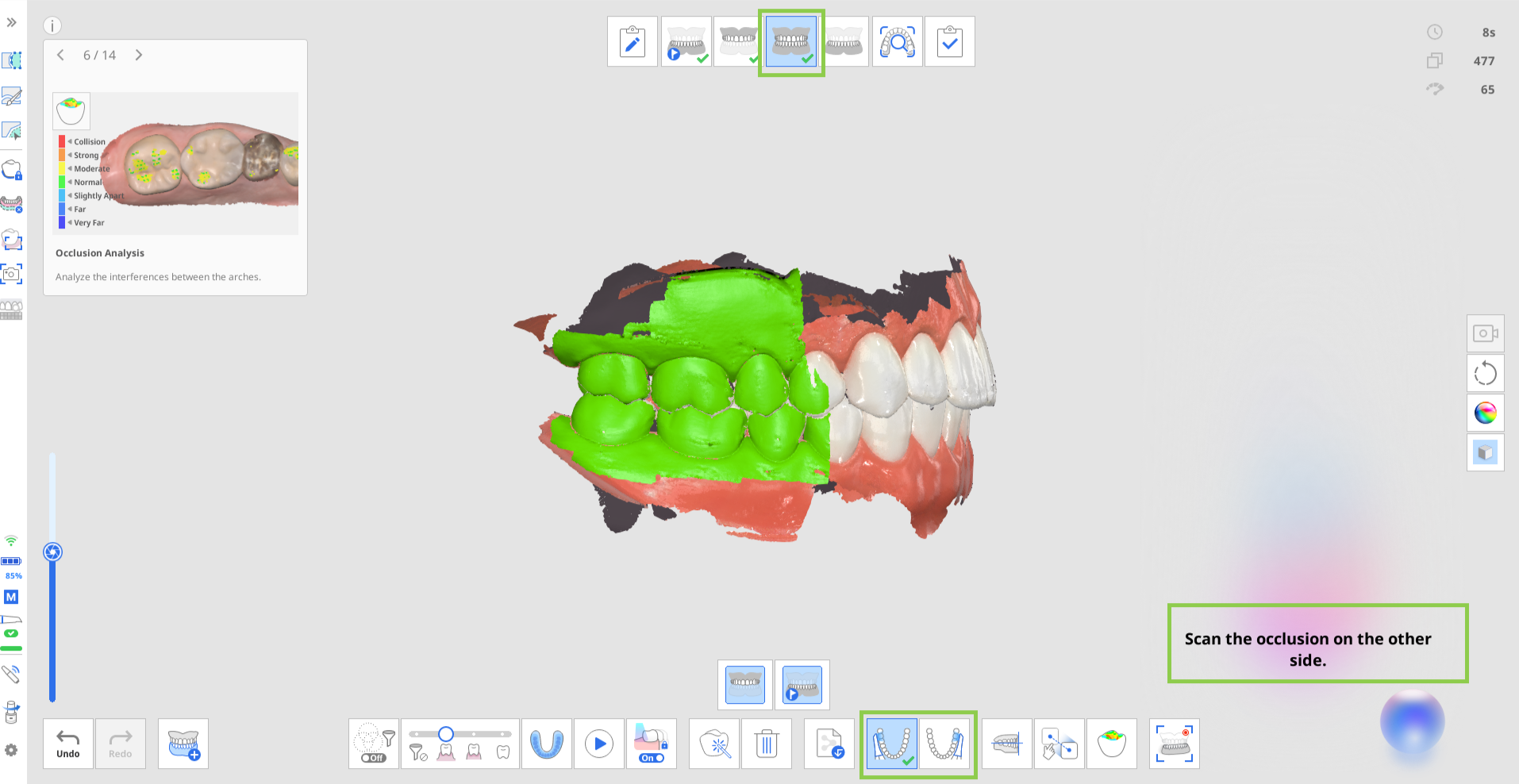
For single-arch cases, capturing only “First Occlusion” is sufficient. For dual-arch cases, both “First Occlusion” and “Second Occlusion” data must be acquired to begin the review process.
Depending on the type of arch data being aligned, either one preparation review item (Verify Occlusal Space) will be displayed or none at all. If prepared teeth data is not captured before occlusion data, this prep review will not be shown during the Occlusion stage. It will only be calculated and displayed in the following stage once prepared teeth data is included. If the value displayed during the Occlusion stage, it will also carry over to that stage where prepared teeth data exists, allowing users to view the Verify Occlusal Space in that stage as well.
🔎Note
Depending on the “Multi Occlusion Group,” occlusal alignment varies, and the review of clearance to antagonists is displayed for each group accordingly.
Acquiring the prepared teeth data
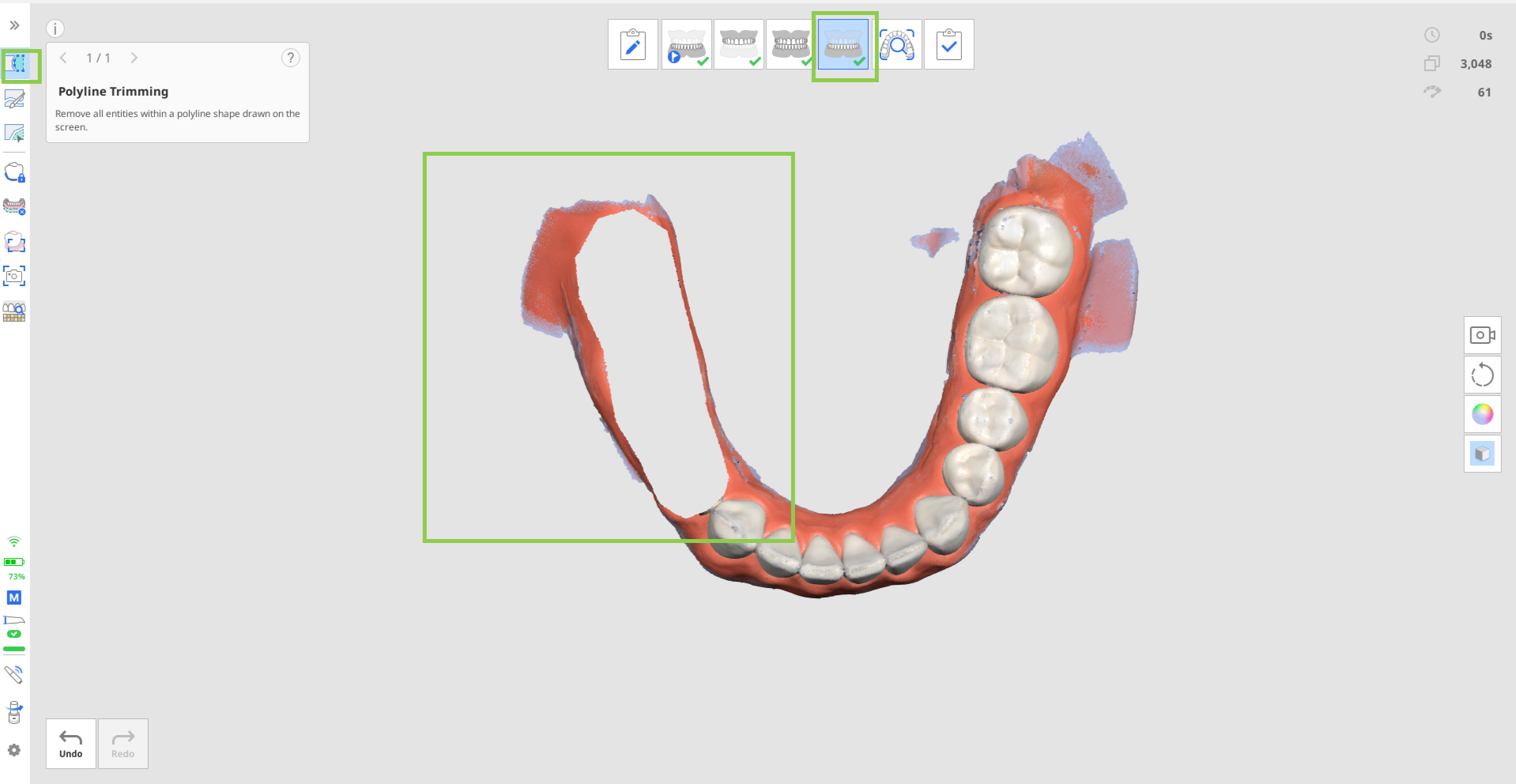
When pre-operational data is available, it is automatically copied into the current scan stage. Here, users can either trim and rescan only the prepared teeth area or scan over the existing data. In both cases, preparation review items will be shown once prepared data is available.
When scanning stops, the prepared areas are evaluated against the target criteria. The results, along with the captured HD images, are displayed in the bottom-right corner of the screen. Users can review the results for each tooth individually or view them collectively for all prepared teeth.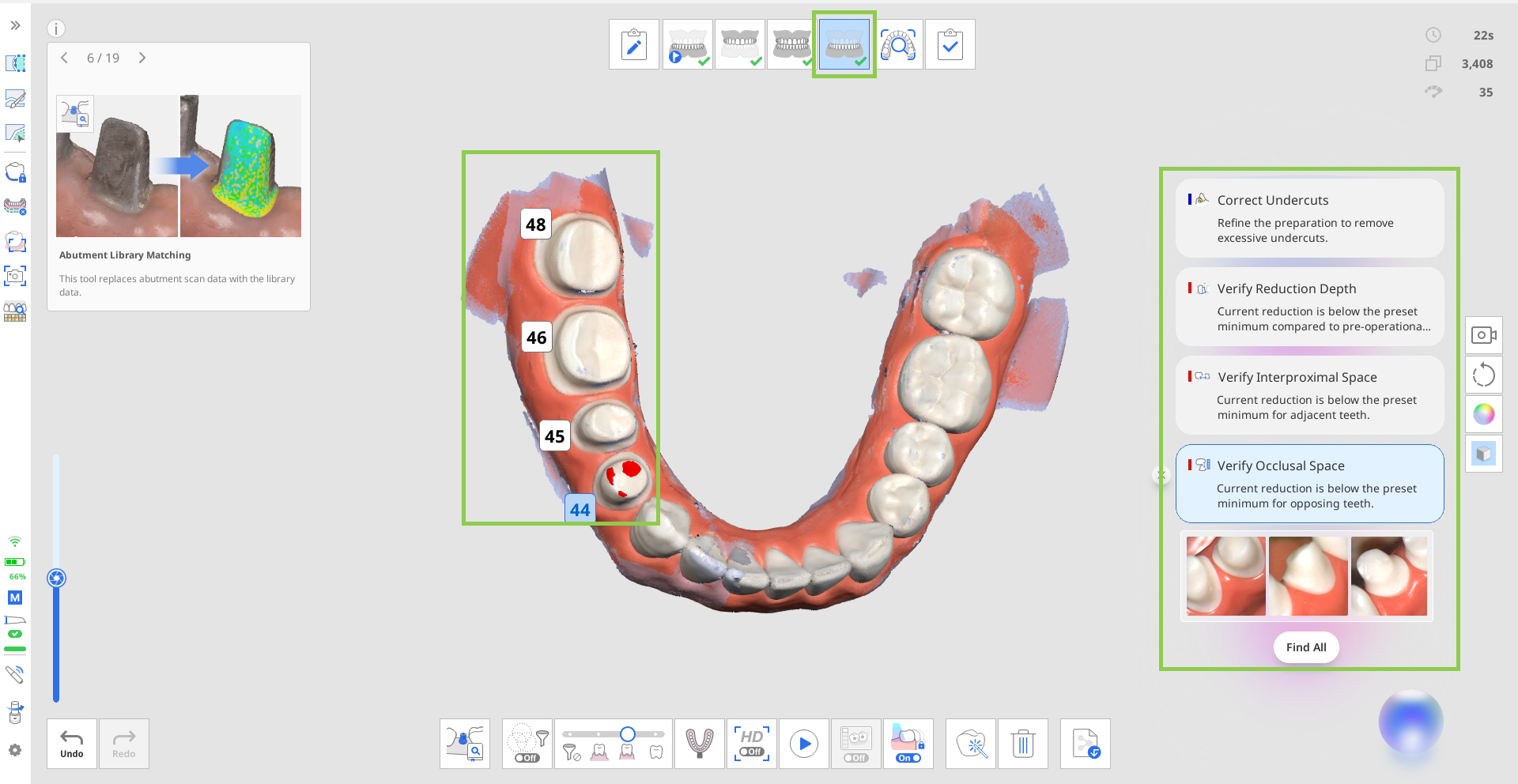
Click “Find All” to select all prepared teeth and review their results at once. Alternatively, click a specific tooth number to view results for that tooth only.
After reviewing the data, you can remove items from the list by clicking the close icon next to each result.
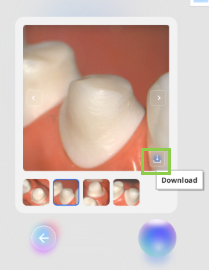
Auto Captures are available at the end of the review item list for each prepared tooth. Review the captures and click the “Download” icon in the bottom-right corner to save the images you need to the Medit Link case. Only images that you download will be available under Attachments in the Medit Link case. And if your workflow includes the Smart Scan Review stage, only the downloaded images will be available for review in that stage.
Note that the images are updated whenever you add more scan data.
🔎Note
The scan review items displayed at this stage do not cover the entire scan but focus on prepared teeth. The results are shown in the area covering the prepared tooth plus 1 or 2 adjacent teeth.
Updating Review Results and Settings
By default, when performing additional scans, scan data is automatically reviewed at the start and end of scanning once the minimum number of capture shots (100) has been reached. Review results are also updated whenever the scan data is modified (e.g., data added, trimmed, or optimized), when entering a scan stage, or when transferring data between scan stages.
⚠️Caution
If the user manually selects the tooth or modifies the margin line using the Margin Line feature, the result may affect the work of the Realtime Intelligence.
Display Conditions and Limitations for Review Items Based on Settings
When adjusting distance values in Settings > Scan Data Analysis, the review results for clearance review are updated according to the new criteria. All related review action items are refreshed accordingly.
When the Use GPU option is turned off in Settings, the Realtime Intelligence feature is automatically disabled and cannot be used.
Switch Smart Scan Filtering to Teeth + Gingiva to display all Scan Data review items, which are not available when Smart Scan Filtering is turned off.
Realtime Intelligence in Smart Scan Review
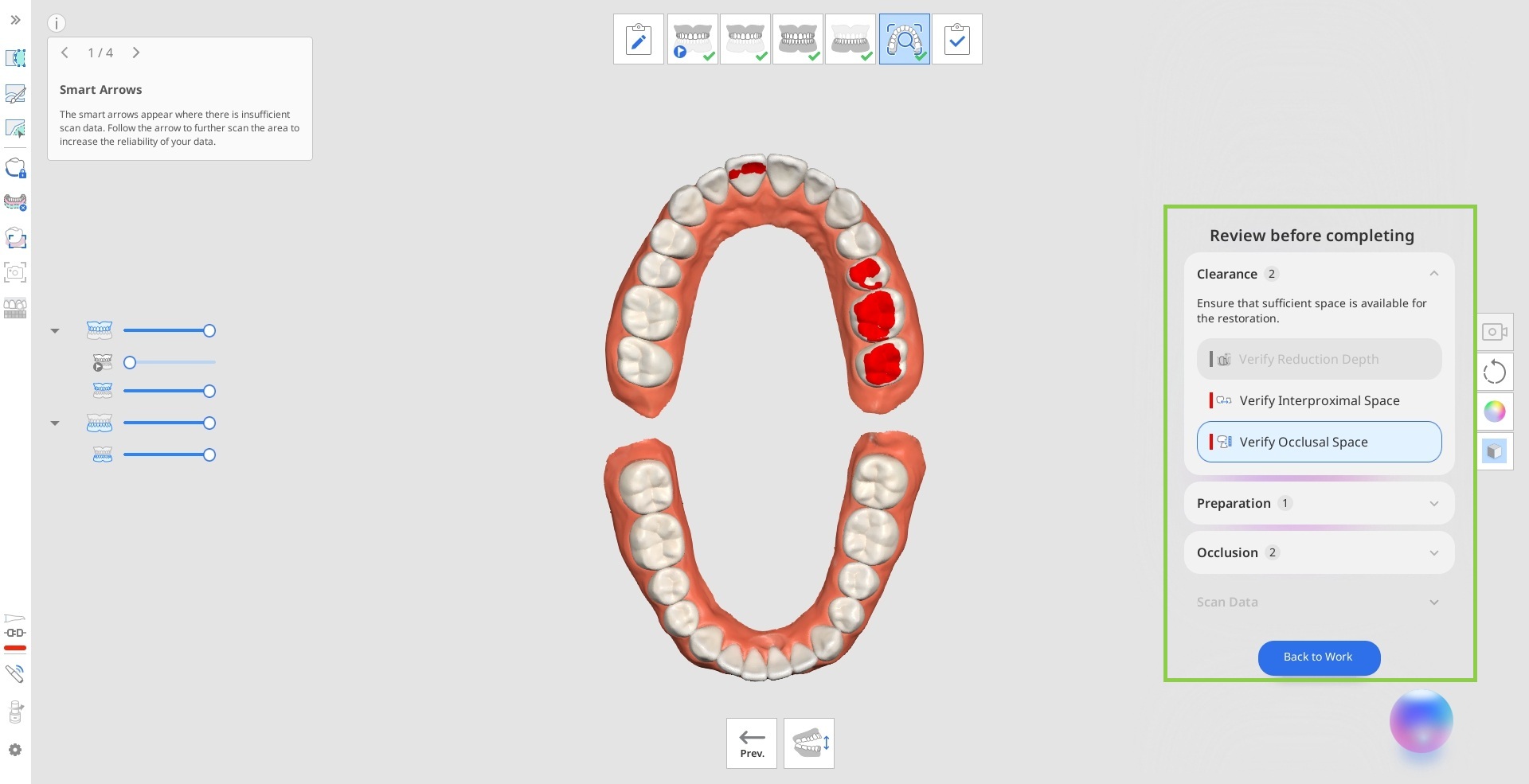
When enabled, Realtime Intelligence affects how the report in Smart Scan Review is generated. Instead of providing a standard report for the current scan stage, Realtime Intelligence generates an enhanced report. This report includes a summary of all actionable review items for the current case in the bottom-right corner.
Before completing the case and finalizing the scan data, review the items detected by Realtime Intelligence. Click “Back to Work” to return to the scan stage corresponding to the currently selected review item, where you can modify the scan data if needed.
In this stage, you can also work with HD 2D images of the prepared teeth. If you downloaded any Auto Captures during the Maxilla/Mandible stages, they will be available for review in the HD Images section.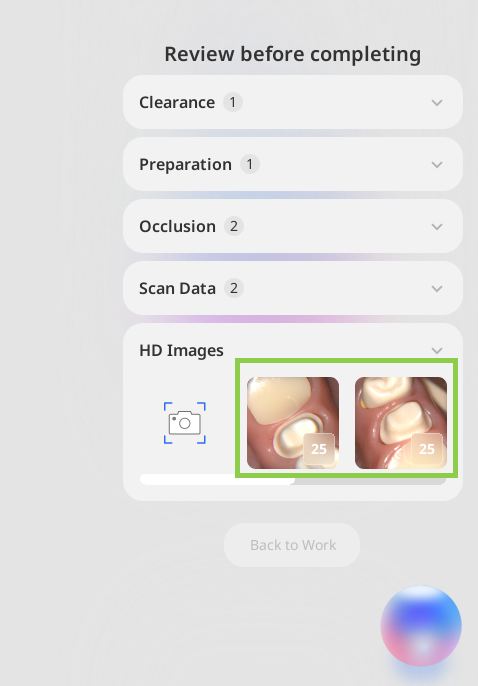
You can also add 2D images of specific areas using the Manual Capture feature in the HD Images section. Click the Manual Capture icon, then hover over the 3D data to preview the available images. Click the desired area to capture and save the image.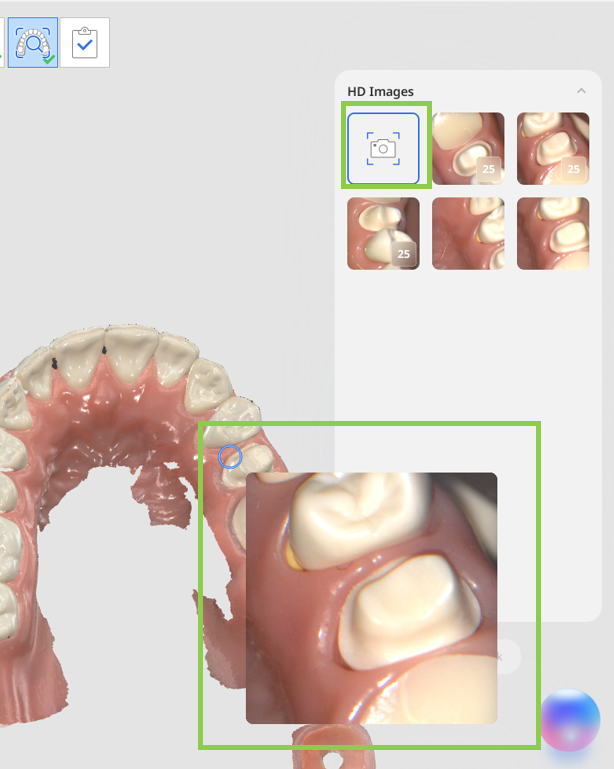
All HD images (both Auto and Manual Captures) available in the review section during the Smart Scan Review stage will be automatically saved as attachments to the Medit Link case upon case completion.