Overview of Case Reports
After running the application from Medit Link, the user is presented with an overview window of all reports associated with the current case, both finalized (or DONE) and not.
🔎Note
It may take a few minutes for the program to load, as the scan data is being converted into a web-compatible format.
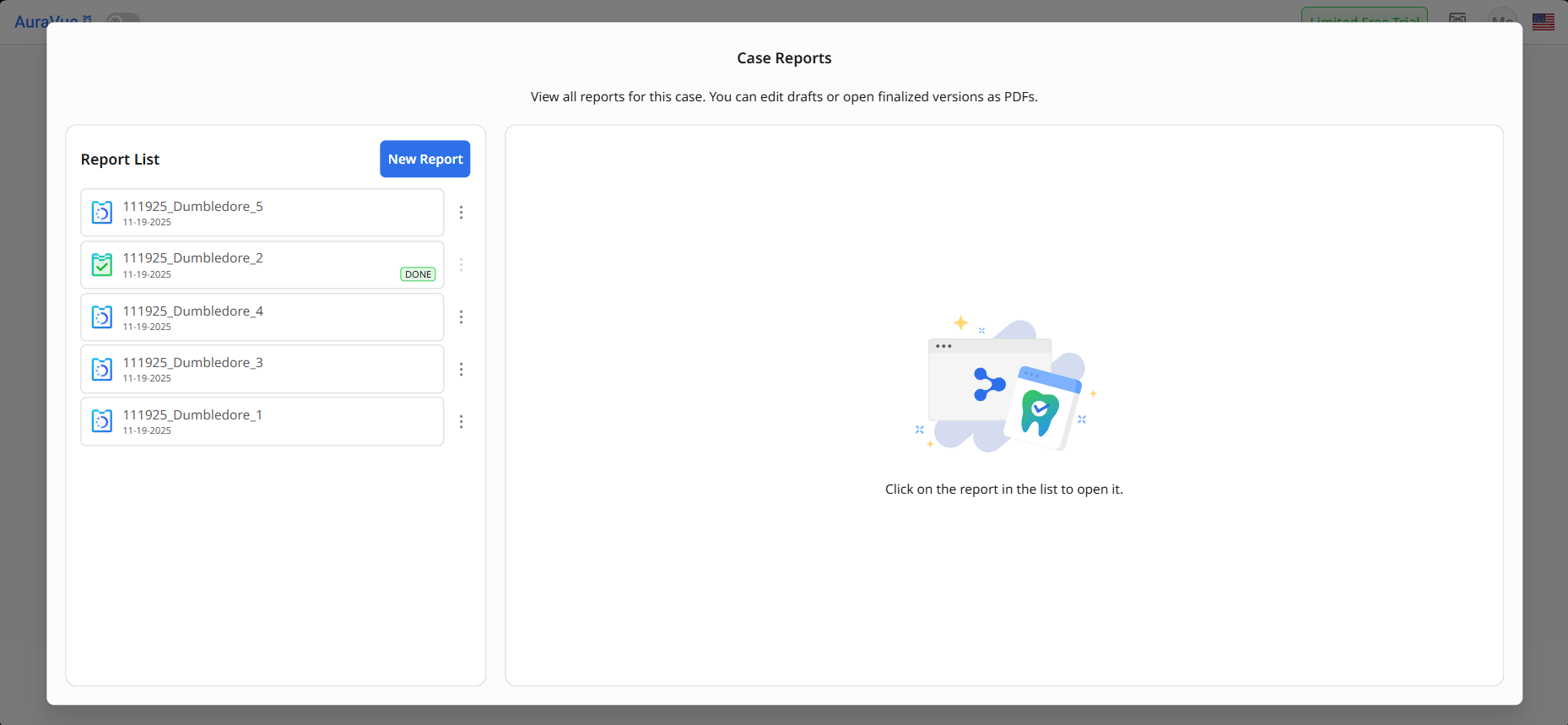
The report names in the list are automatically generated based on their creation date, case name, and a consecutive number. You can preview and manage your case reports from this window.
To delete a report: Click the menu button next to the report in the list.
To preview a report: Select it from the list. The content of a draft report will appear on the right side. You can continue editing it by clicking the “Edit” button.
If the report has been finalized, it will open as a completed PDF file, which you can share with the patient or print. Finalized reports are not editable.
To create a new report: Click the “New Report” button.
Creating or Editing Reports
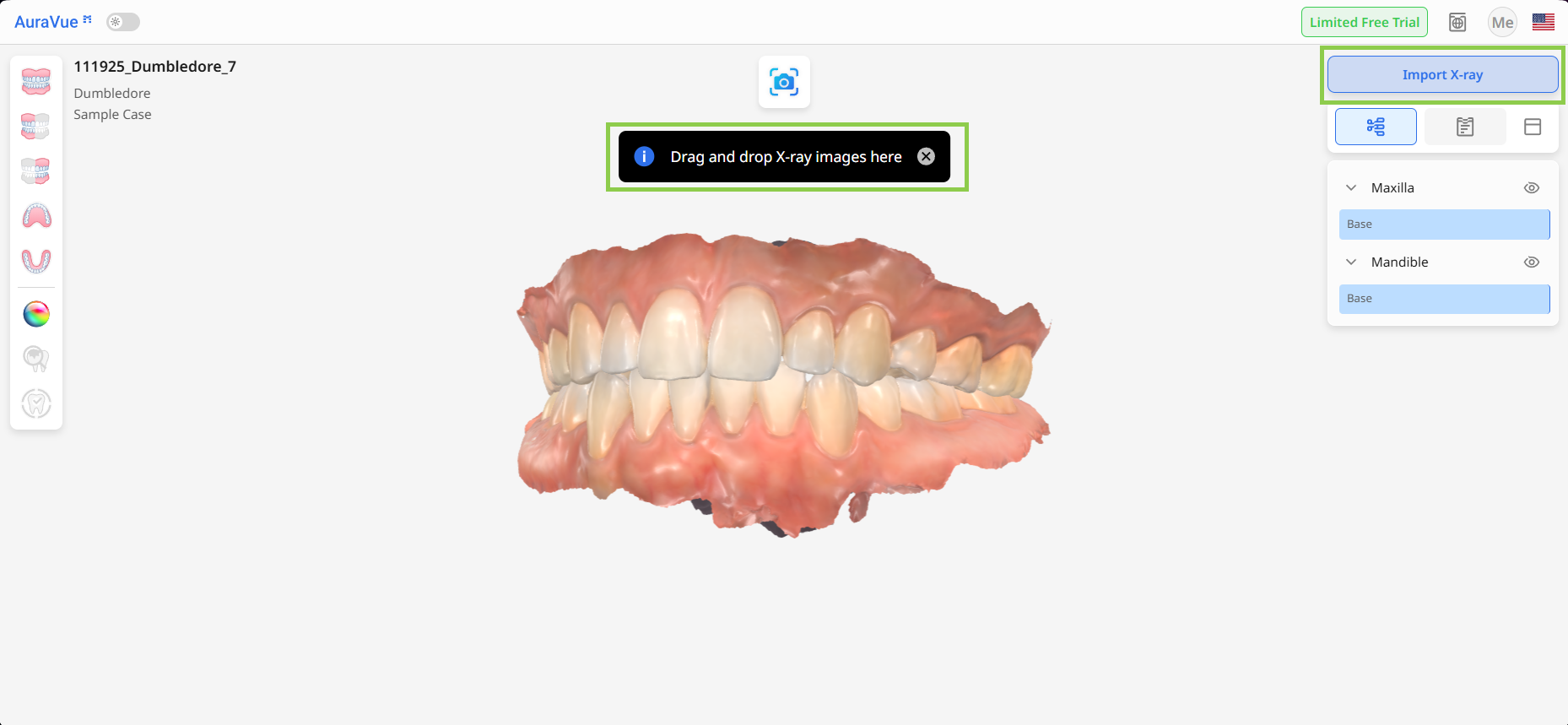
When starting a new report, the scan data from the Medit Link case is automatically converted into a web-compatible format and imported into the app. However, X-ray images must be imported manually after opening the program. You can either drag and drop them into the browser or use the Import X-ray tool above the Side Panel on the right.
🔎Note
You can upload up to 20 images in JPG or JPEG format.
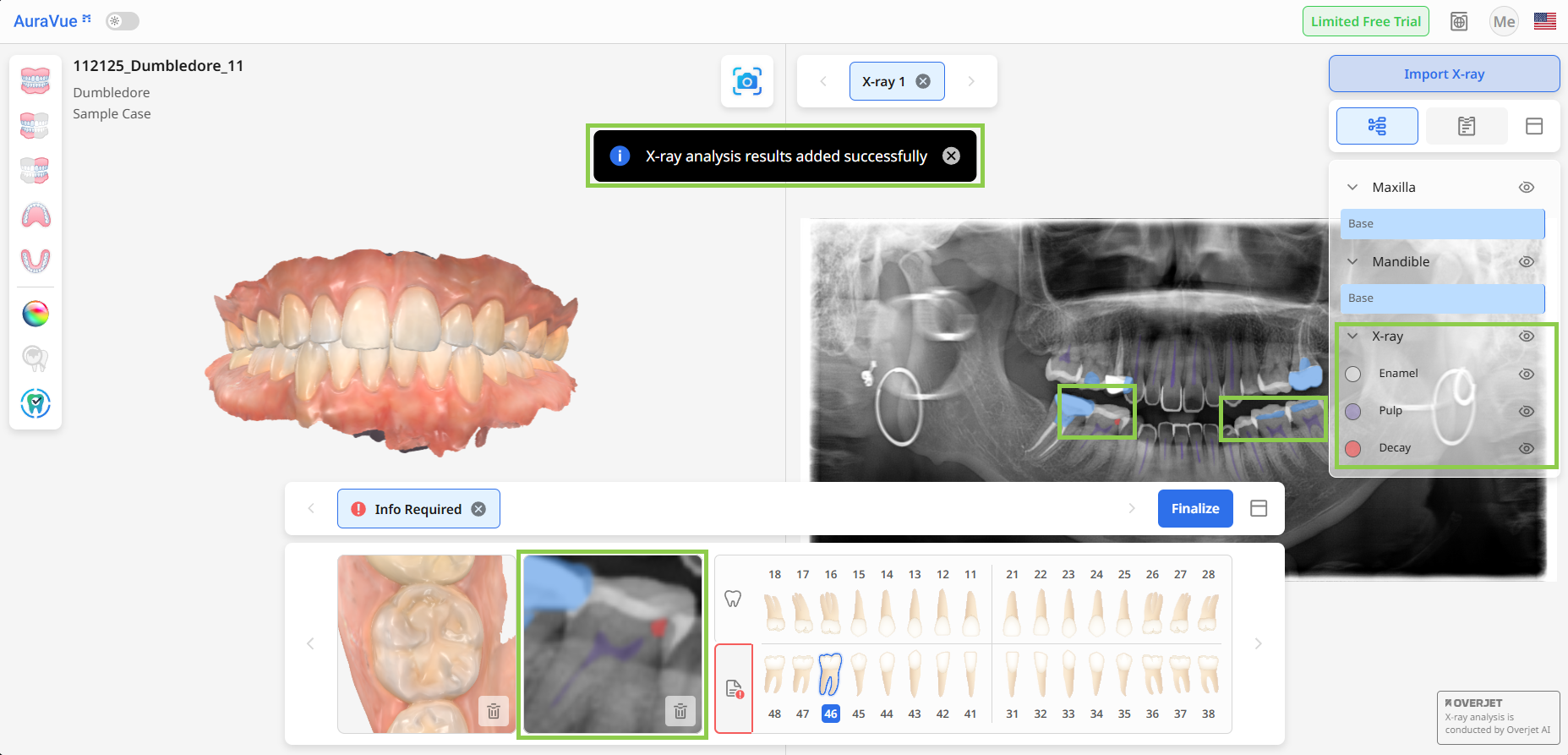
Once the X-rays are imported, they are automatically analyzed by the integrated Overjet AI. When the analysis is complete, the findings will be shown on the X-ray images and also listed in the Data Tree.
🔎Note
You do not need to install the Overjet program separately.
To manually add captures to the report, review the scan data for pathologies and use the Capture tool to add a visual of the target area to the Report Panel.
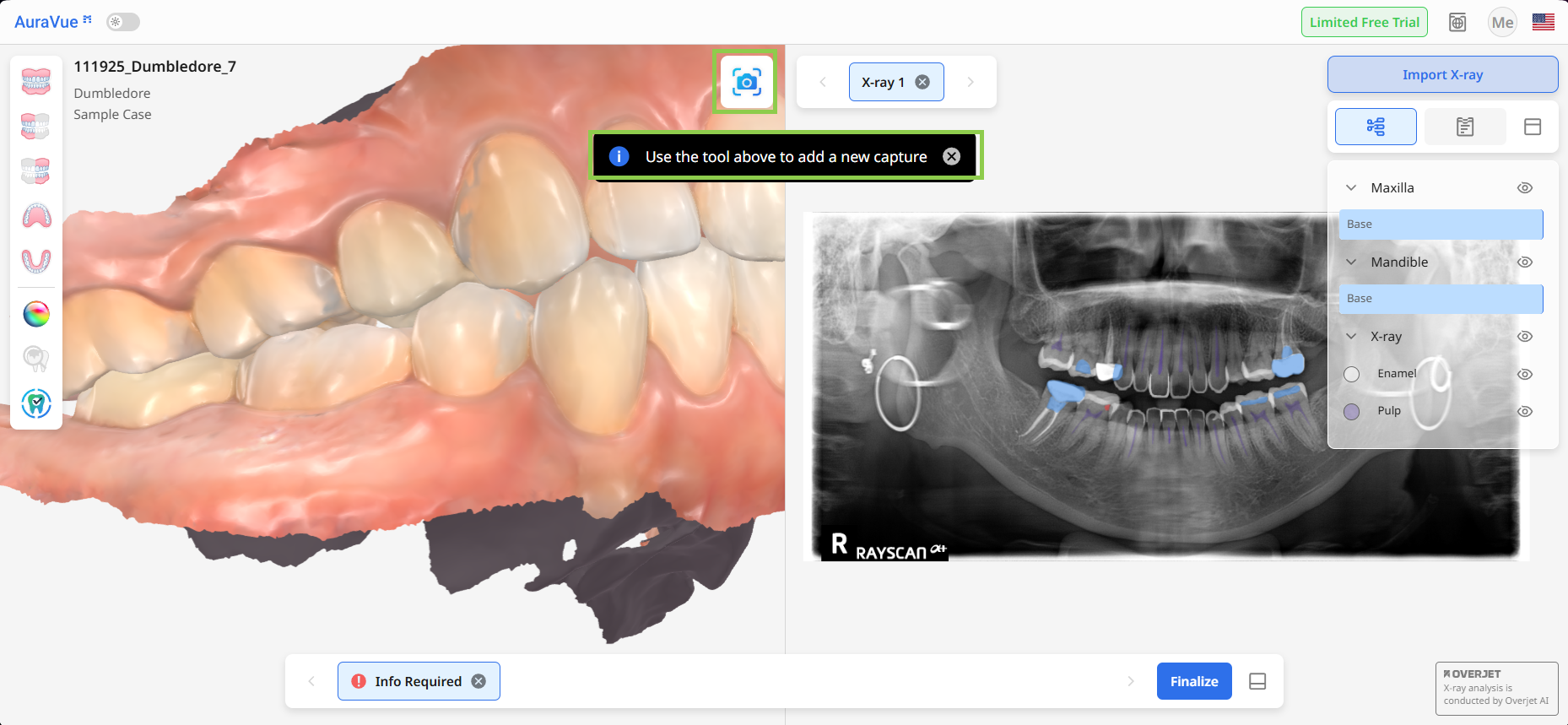
Then select the corresponding tooth number on the right side of the Report Panel, and the program will automatically locate the matching view from the imported X-rays.
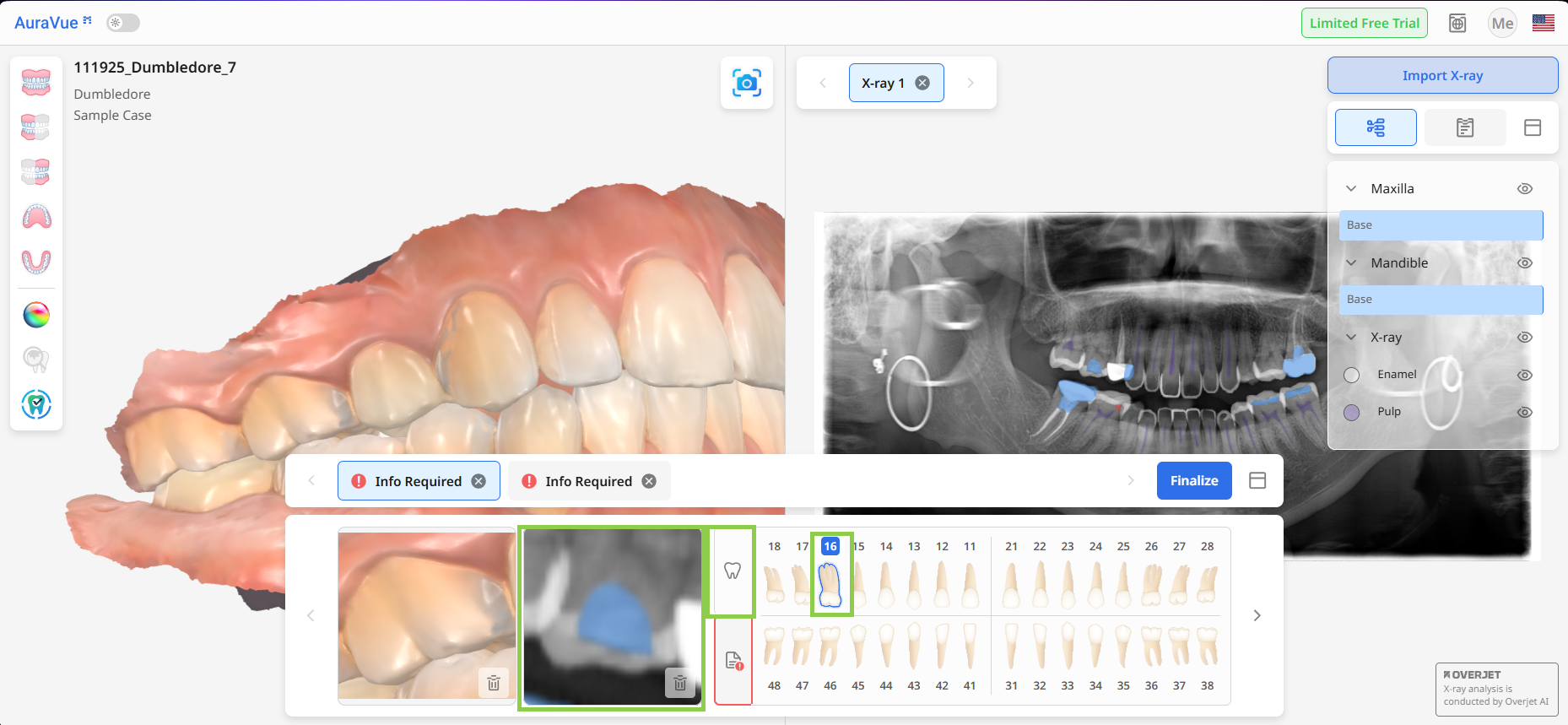
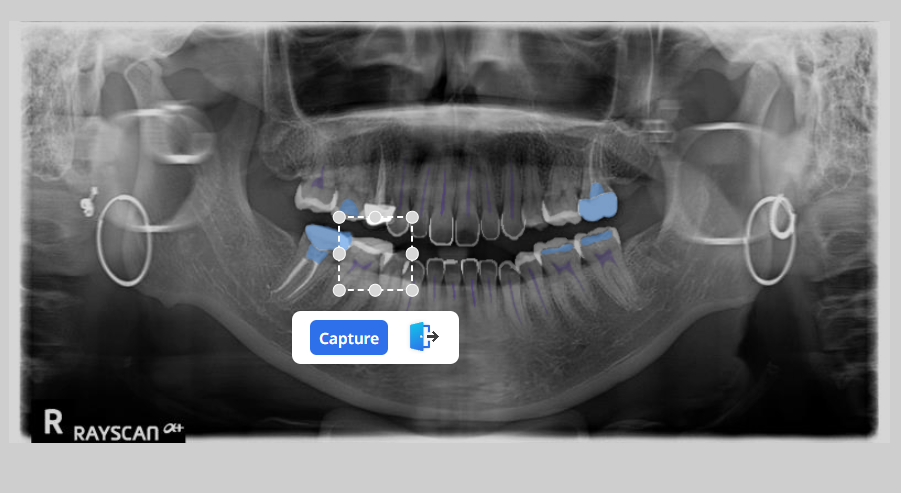
If automatic matching is unsuccessful, click the window where the X-ray image should appear, and then manually select the correct area on the X-ray.
In the Form tab of the Report Panel, complete the required fields for diagnosis and treatment, and add a memo if necessary. If you select Other for either diagnosis or treatment, you can enter a custom entry. Check for any items marked with a red attention icon to ensure all required information is completed before finalizing the report.
.png)
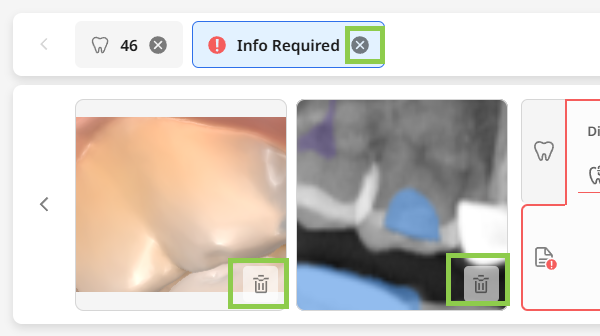
Any captures in the Report Panel can be manually redone if deleted, or you can delete the entire report entry.
Use the “Show Visual Cues” button to highlight areas (mark them in blue) of the scan data that may need closer review.
.png)
To review which parts of the scan data are included in the report, use the Show Reported Areas button. It visually highlights all reported areas on the scan, making it easier to perform a final check before finalizing the report.
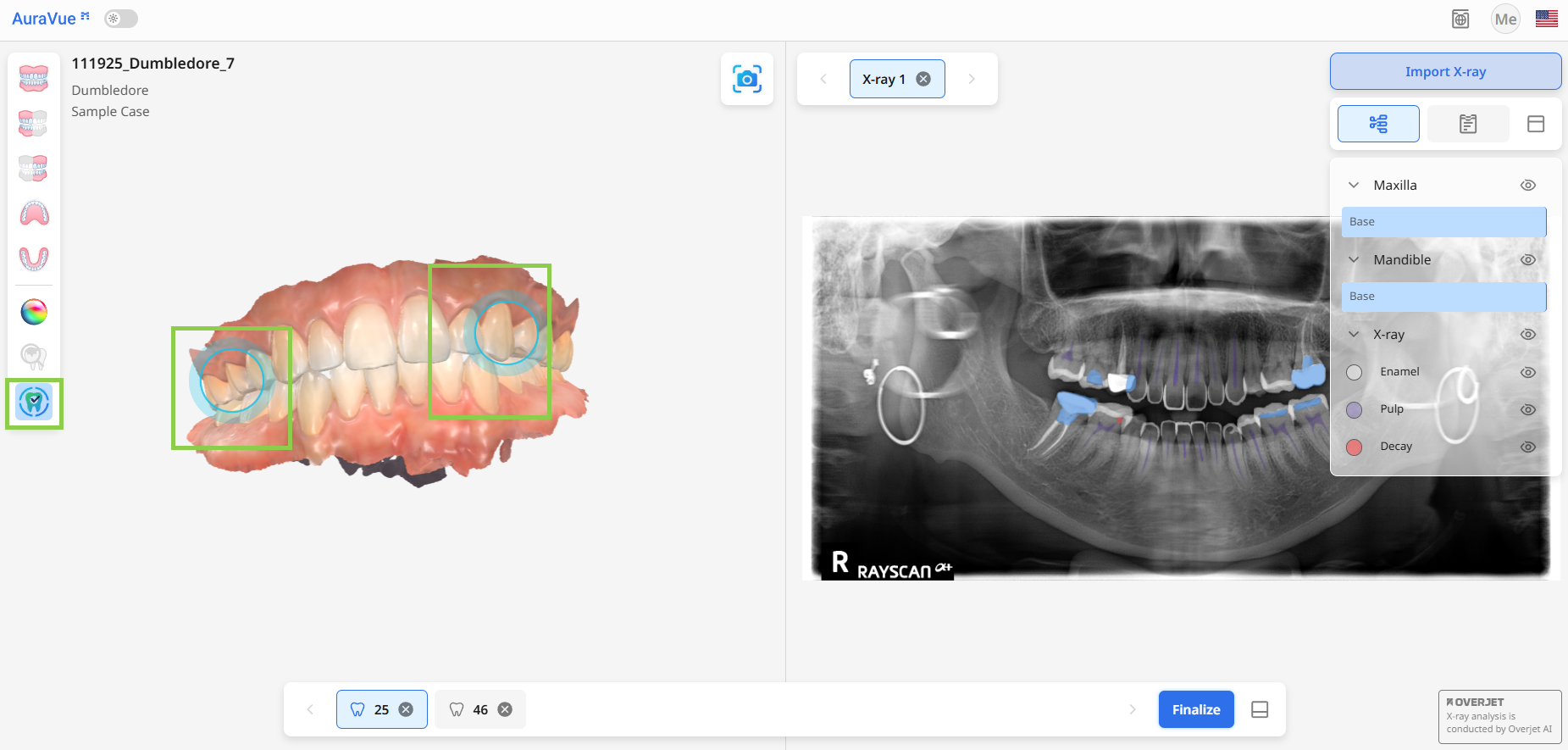 all
all When all information for all the entries in the Report Panel is organized, click “Finalize.”
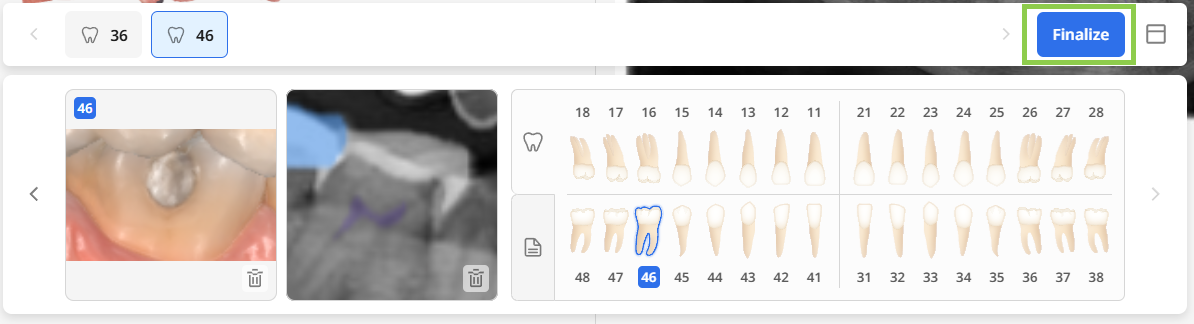
Finalizing Reports
Once the “Finalize” button is clicked, a preview window appears, allowing the user to verify the report content and finalize its creation before sharing or exporting it.
Scroll over the imaging to check the report content.
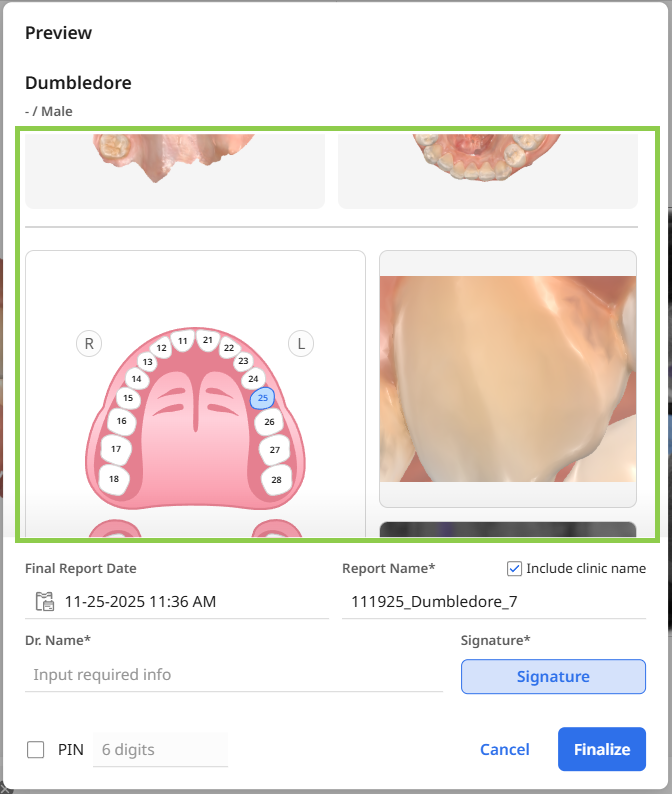
Provide all mandatory details for the report, including the report name, date, doctor’s name, and signature. The system generates a default report name, but you may modify it.
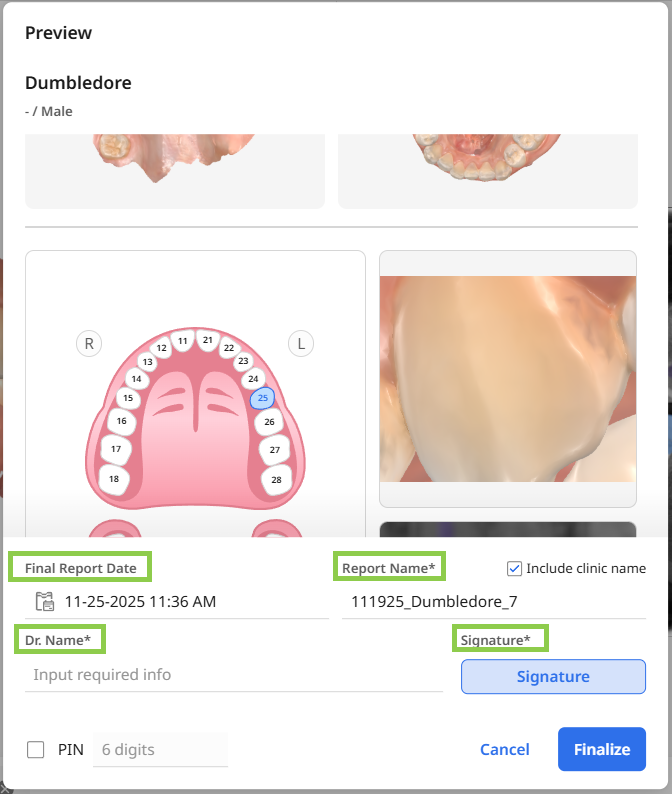
Optionally, you may secure the report with a PIN, which the patient must enter to view its contents. The clinic name is automatically included in the finalized report.
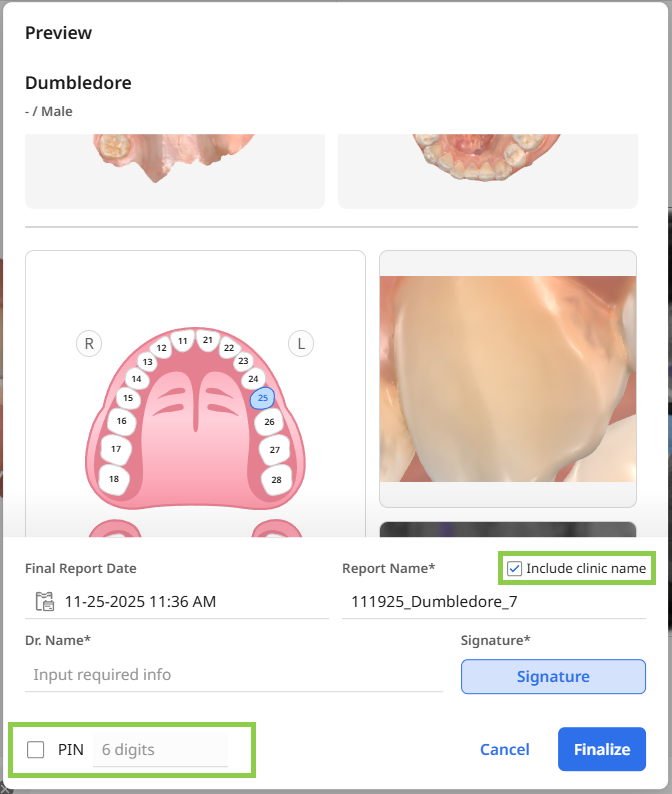
When all sections are ready, confirm finalizing the report by clicking “Finalize.“
⚠️Caution
The final PDF may take several minutes to generate. Make sure to keep the webpage open until the file has been successfully created.
Sharing Finalized Reports
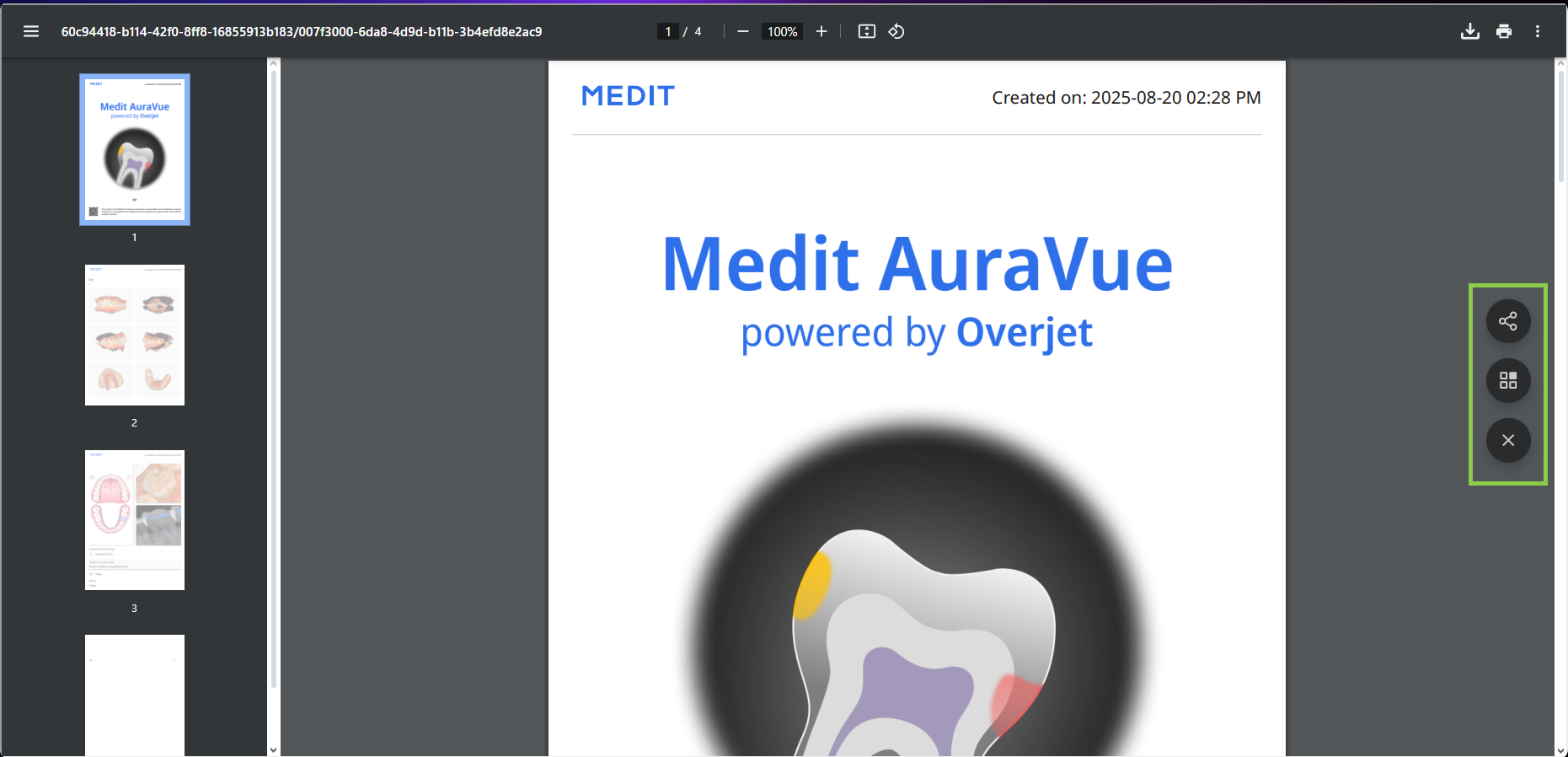
The finalized report will open automatically as a PDF in your browser. You can share it with the patient using a QR code or email. Once you're done, feel free to close the browser or application tab— the PDF is automatically saved to the case.
⚠️Caution
The final report is intended for reference purposes only and does not constitute a medical history. For a comprehensive diagnosis and treatment plan, please refer to the official medical records.