Función de pago
Esta función requiere una suscripción de pago.
La función de Inteligencia en Tiempo Real identifica automáticamente los dientes preparados en los datos del escaneo y revisa tanto el escaneo completo como las áreas de preparación en función de los requisitos clave para los casos de restauración. Proporciona información inmediata y fácil de entender, lo que permite a los usuarios evaluar la calidad de los datos en tiempo real y realizar ajustes sobre la marcha para lograr un trabajo de diseño más preciso posteriormente.
Cuando finaliza el escaneo, el programa comprueba automáticamente si hay dientes preparados. Si se detectas alguna anomalía, se procede a la preparación y revisión de los datos de escaneo, y se capturan varias imágenes en alta definición de los dientes objetivo. Si no se identifican dientes preparados, solo se realiza la revisión de los datos del escaneo. En función de los resultados de la preparación y la revisión de los datos de escaneo, el programa sugiere acciones de revisión adicionales para ayudar a garantizar la exhaustividad del escaneo y una preparación adecuada para los casos de restauración.
La tabla que aparece a continuación resume las categorías de revisión, las acciones de revisión sugeridas y sus explicaciones correspondientes.
Revisar Categoría | Revisar acción | Detalles |
|---|---|---|
Autorización | Verificar el espacio oclusal | Mide la distancia a los dientes opuestos para verificar que haya suficiente espacio para la fabricación de la prótesis. El umbral predeterminado se puede configurar en Configuración > Revisión de la preparación. |
Verificar el espacio interproximal | Comprueba la distancia a las estructuras adyacentes para verificar que se haya creado suficiente espacio para la fabricación de la prótesis. El umbral predeterminado se puede configurar en Configuración > Revisión de la preparación. | |
Verificar la profundidad de reducción | Compara la preparación previa y posterior para determinar cuánta reducción adicional es necesaria en función del grosor ideal de la prótesis. El umbral predeterminado se puede configurar en Configuración > Revisión de la preparación. | |
Preparación | Cortes inferiores correctos | Muestra los socavados en función del eje de inserción automático. Las áreas resaltadas en azul indican las regiones donde puede producirse interferencia durante la inserción de la prótesis. |
Inspeccione la línea de margen | Representa visualmente la convexidad, la concavidad y la rugosidad alrededor del margen. Esto ayuda a reevaluar la línea del margen y a valorar la suavidad y uniformidad de la superficie de preparación en la zona del margen. Las zonas más cercanas al rojo indican regiones más convexas, mientras que las zonas más cercanas al azul indican regiones más cóncavas. | |
Oclusión | Comprobar el equilibrio de oclusión | Comprueba las distancias y los puntos de contacto a lo largo de la mordida para detectar interferencias de contacto y una posible distribución desigual de la fuerza. |
Analizar los patrones oclusales | Compara la oclusión antes y después de la preparación. | |
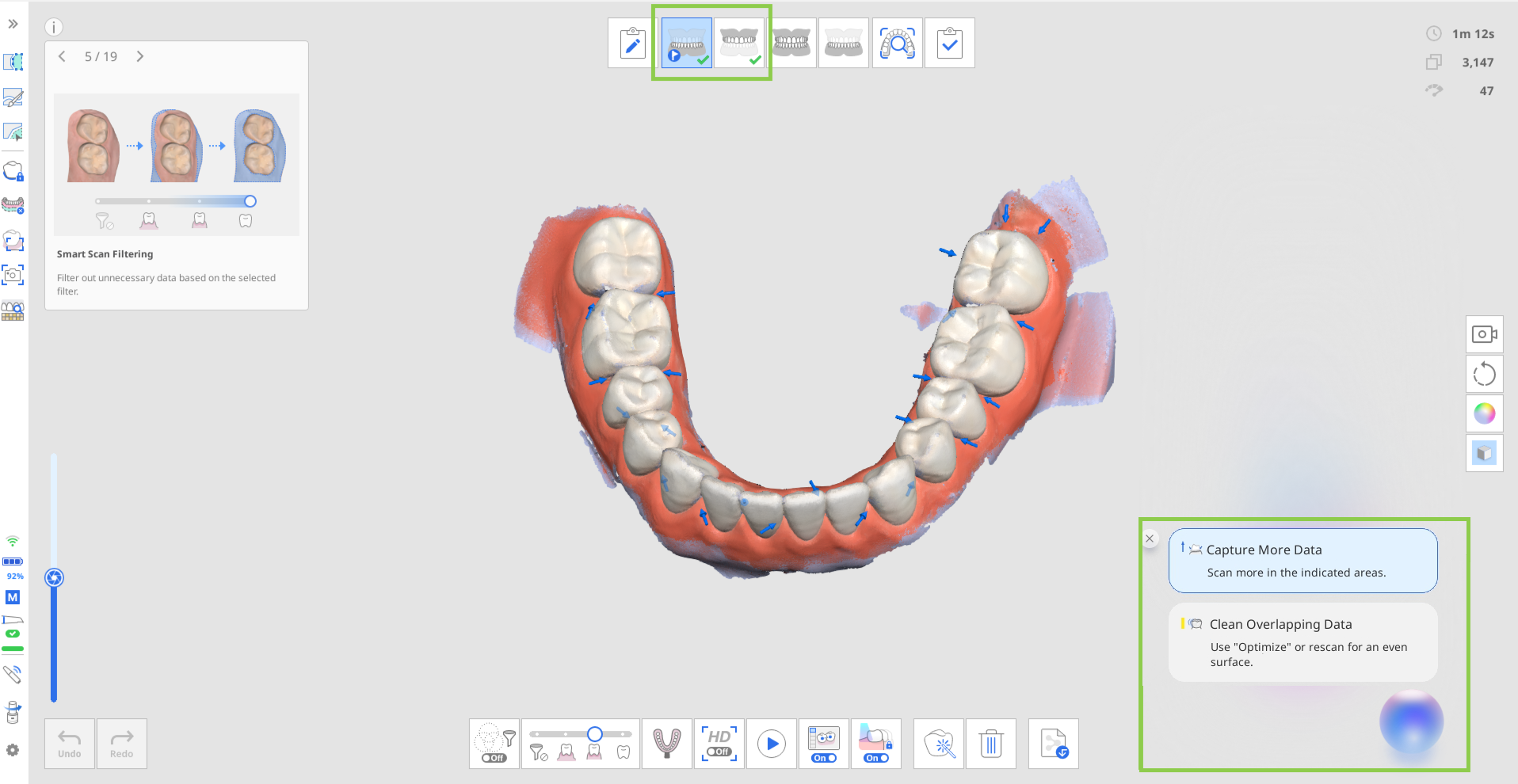
Datos de escaneo | Captura más datos | Indica áreas con datos de escaneo insuficientes. Una vez detectados los dientes preparados, la revisión se centra en las regiones clínicamente relevantes, incluidos los dientes preparados y 1 o 2 dientes adyacentes. Vuelve a escanear las áreas resaltadas para garantizar que los datos de escaneo sean completos y precisos. |
Limpiar datos superpuestos | Indica áreas con datos de escaneo superpuestos (multicapa), lo que puede deberse a sangre, saliva, movimiento dental o una técnica de escaneo inadecuada. Los usuarios pueden eliminar las áreas afectadas y volver a escanear, o utilizar la función "Optimizar" para realinear y revisar los datos. Una vez detectados los dientes preparados, la revisión se centra en las regiones clínicamente relevantes, incluidos los dientes preparados y sus 1-2 dientes adyacentes. Si no se detectan dientes preparados, se muestran datos por capas en toda la arcada dental. | |
Imágenes HD | - | Captura hasta 5 imágenes por diente preparado desde múltiples direcciones: oclusal, bucal, lingual, mesial y distal. |
🔎Notas
La información relacionada con la autorización se muestra cuando los valores caen por debajo del umbral predeterminado establecido en la ventana de diálogo introductoria. Este umbral se puede ajustar en la configuración. Las zonas por debajo del umbral están resaltadas en rojo; coloca el cursor sobre estas zonas para ver la distancia exacta.
Las imágenes en alta definición se crean automáticamente y se guardan en Medit Link como archivos adjuntos una vez finalizado el caso.
⚠️Precaución
La visibilidad de algunos resultados de la revisión puede variar según el orden de la etapa de escaneo. Para garantizar que estos resultados se muestren correctamente, sigue la configuración de flujo de trabajo recomendada.
Configuración de flujo de trabajo recomendada
La visualización de los elementos de revisión mencionados anteriormente depende de la disponibilidad de datos de escaneo preoperatorios y de oclusión. Por lo tanto, al utilizar esta función, sigue la configuración de la etapa de escaneo recomendada para obtener resultados más completos y garantizar un flujo de trabajo más fluido. Ten en cuenta que si personalizas el flujo de trabajo de forma diferente, es posible que el programa no tenga en cuenta algunos elementos de revisión y que el icono de la función no aparezca en determinadas etapas del escaneo.
Para los casos con datos preoperatorios, coloca la etapa de escaneo con el diente preparado objetivo (maxilar/mandíbula) al final del flujo de trabajo.
Ejemplos: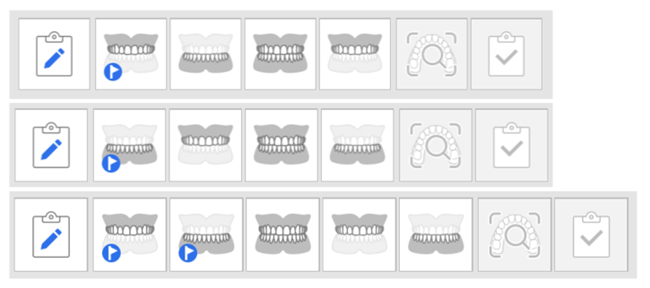
Para los casos sin datos preoperatorios, coloca la etapa de oclusión al final del flujo de trabajo.
Ejemplos: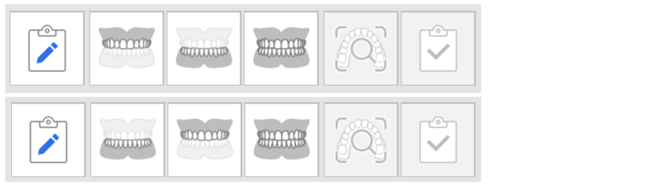
🔎Notas
Esta función también está disponible en el modo de IU sencilla.
La función de Inteligencia en tiempo real es compatible exclusivamente con casos de coronas e inlays/onlays y no es aplicable a casos de carillas o puentes. Por lo tanto, el icono de la función no está disponible en etapas distintas a la etapa preoperatoria, la etapa maxilar/mandibular y la etapa de oclusión.
Cuando la función Inteligencia en tiempo real está activada, la función Flechas inteligentes se activa automáticamente y no se puede desactivar. Para usar las Flechas Inteligentes de forma independiente, desactiva la opción Habilitar Inteligencia en Tiempo Real y, a continuación, activa las Flechas Inteligentes.
Al utilizar SmartX Workflow, la función Inteligencia en tiempo real no es compatible y no se puede utilizar simultáneamente.
Criterios de revisión de datos
La realización de una revisión de datos depende del número de imágenes capturadas durante el escaneo.
El escaneo puede realizarse en uno o ambos arcos dentales, y el sistema identifica automáticamente el tipo de escaneo.
La revisión de datos se activa únicamente cuando se alcanza el número mínimo de disparos requerido.
Modelo de escáner | Experiencia de escaneo | Arcada completa | Arco parcial |
|---|---|---|---|
i900 Mobility / i900 classic / i900 / i700 wireless / i700 | Fast & Furious | Al menos 2.500 disparos | Al menos 1.500 disparos |
i900 Mobility / i900 classic / i900 / i700 wireless / i700 / i600 | Smooth & Steady | Al menos 1.500 disparos | Al menos 800 disparos |
⚠️Precaución
El número mínimo de tomas de captura de datos requeridas está sujeto a cambios sin previo aviso.
Cómo utilizar la inteligencia en tiempo real
Si está suscrito, la función se puede controlar en Configuración > Análisis de datos de escaneo > Habilitar inteligencia en tiempo real. Cuando está habilitada, el icono de estado de la función aparece en color en la barra de título.
El icono principal de la función aparece en la esquina inferior derecha en cada etapa del escaneo. Haz clic para mostrar u ocultar el contenido de la reseña y los mensajes de la guía.
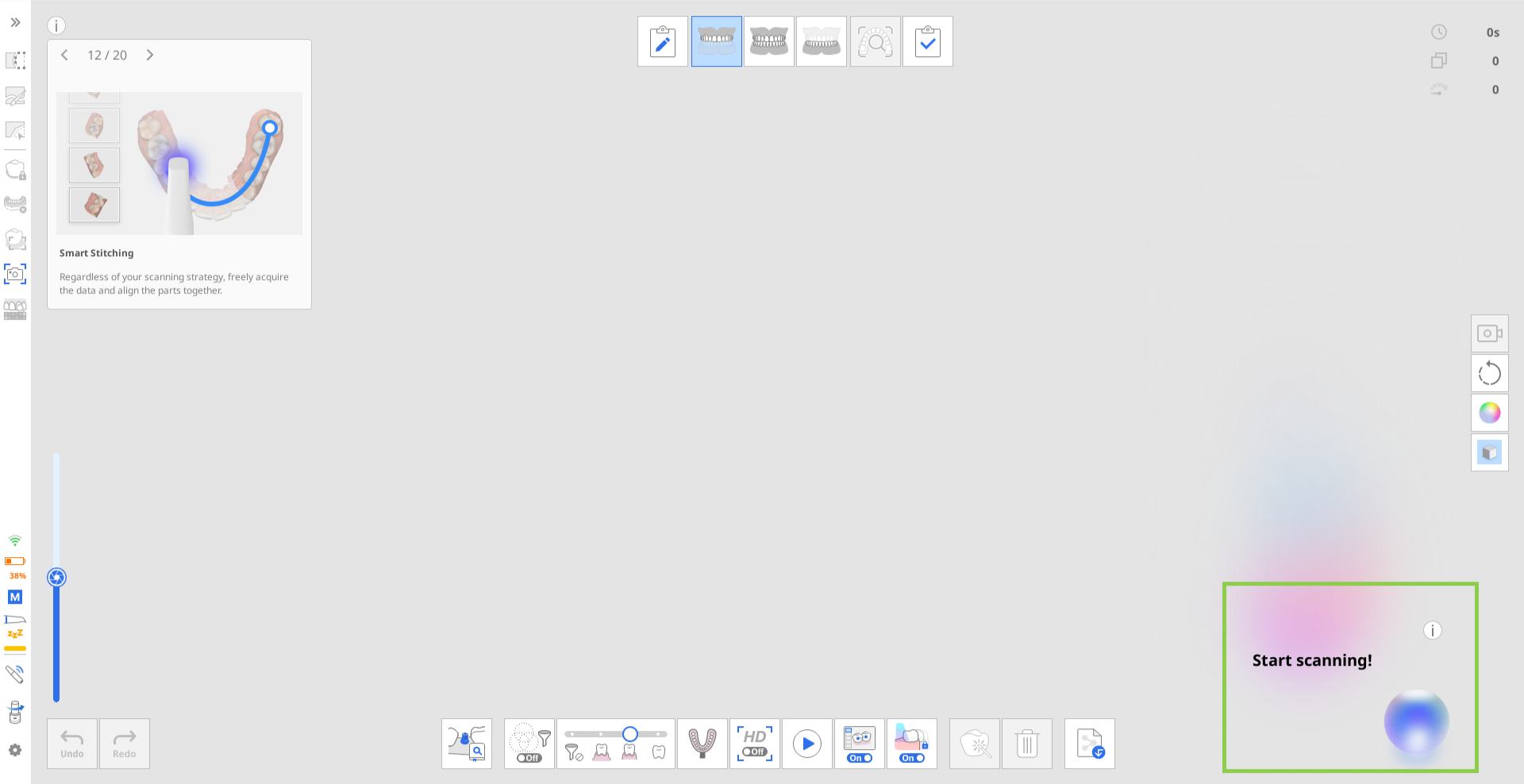
Inteligencia en tiempo real funciona con los mismos principios básicos, independientemente de la configuración del flujo de trabajo elegida. Para ilustrar el proceso, esta guía utiliza el ejemplo de un caso de corona mandibular en el que se dispone de datos dentales preoperatorios para su escaneo.
En este escenario, las etapas de escaneo se realizan en el siguiente orden, como sugieren las recomendaciones dadas anteriormente: Preoperatorio para mandíbula → Maxilar → Oclusión → Mandíbula

Ejemplo de secuencia de flujo de trabajo
Adquisición de los datos preoperacionales y del antagonista
Una vez finalizado el escaneo, la revisión de los datos escaneados comienza automáticamente. Durante este paso, solo se muestran los elementos de revisión del escaneo en la esquina inferior derecha. Revisa los resultados y los comentarios, y ajusta los datos del escaneo según sea necesario.
Adquiriendo los datos de oclusión
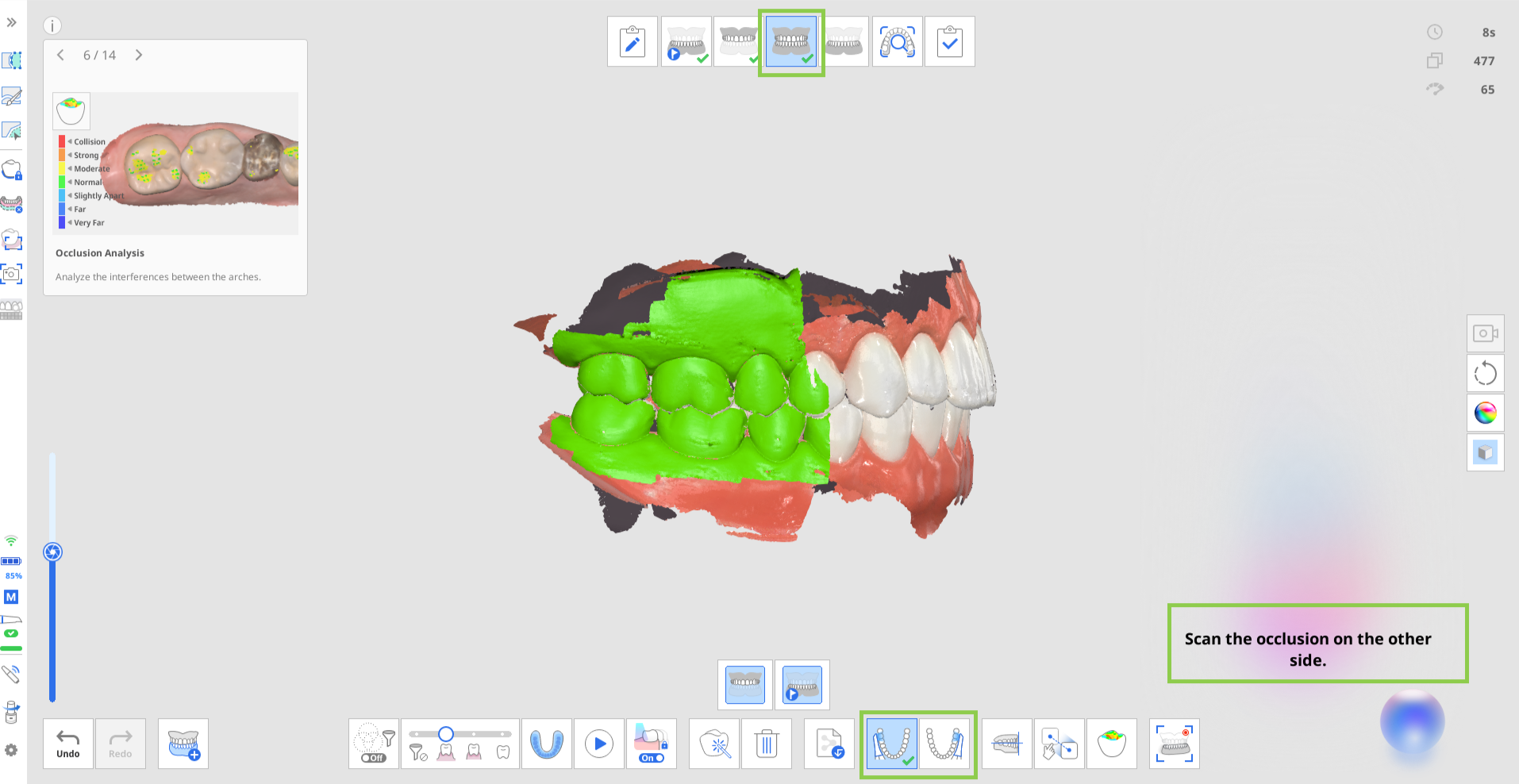
En los casos de arco único, basta con capturar únicamente la "Primera Oclusión". En los casos de doble arco, se deben obtener los datos de la "Primera Oclusión" y de la "Segunda Oclusión" para comenzar el proceso de revisión.
Dependiendo del tipo de datos del arco que se estén alineando, se mostrará un elemento de revisión de la preparación (Verificar espacio oclusal) o ninguno. Si no se registran los datos de los dientes preparados antes que los datos de oclusión, esta revisión de la preparación no se mostrará durante la etapa de oclusión. Solo se calculará y mostrará en la siguiente etapa una vez que se incluyan los datos de los dientes preparados. Si el valor se muestra durante la etapa de oclusión, también se transferirá a esa etapa donde existan datos de dientes preparados, lo que permitirá a los usuarios ver la verificación del espacio oclusal también en esa etapa.
🔎Nota
Dependiendo del "Grupo de Oclusión Múltiple", la alineación oclusal varía y la revisión del espacio libre hacia los antagonistas se muestra para cada grupo en consecuencia.
Adquiriendo datos de los dientes preparados
Cuando se dispone de datos preoperacionales, estos se copian automáticamente en la fase de escaneo actual. Aquí, los usuarios pueden recortar y volver a escanear solo el área de los dientes preparados o escanear sobre los datos existentes. En ambos casos, los elementos de revisión de la preparación se mostrarán una vez que se disponga de los datos preparados.
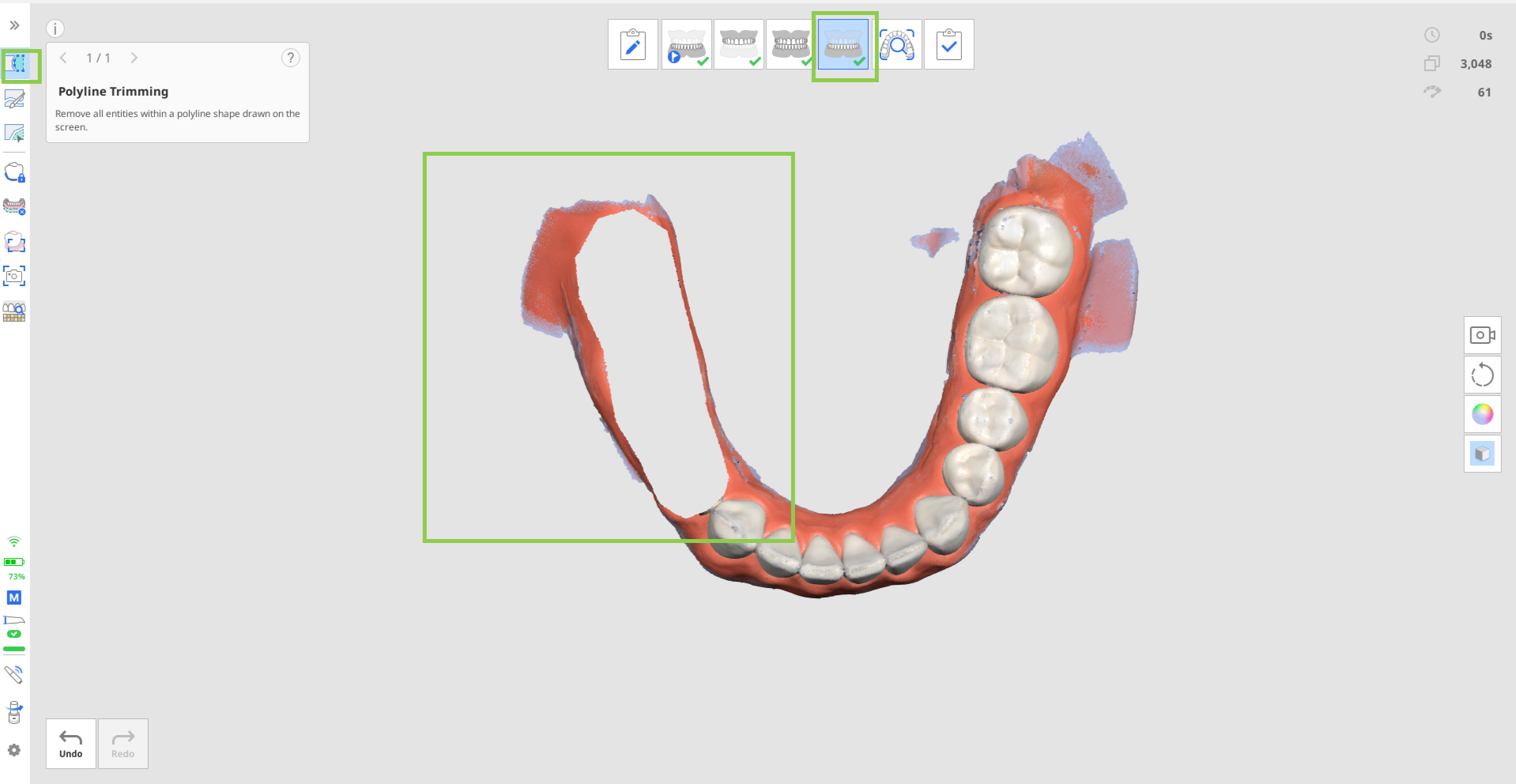
Cuando finaliza el escaneo, las áreas preparadas se evalúan según los criterios establecidos. Los resultados, junto con las imágenes HD capturadas, se muestran en la esquina inferior derecha de la pantalla. Los usuarios pueden revisar los resultados de cada diente individualmente o verlos de forma conjunta para todos los dientes preparados.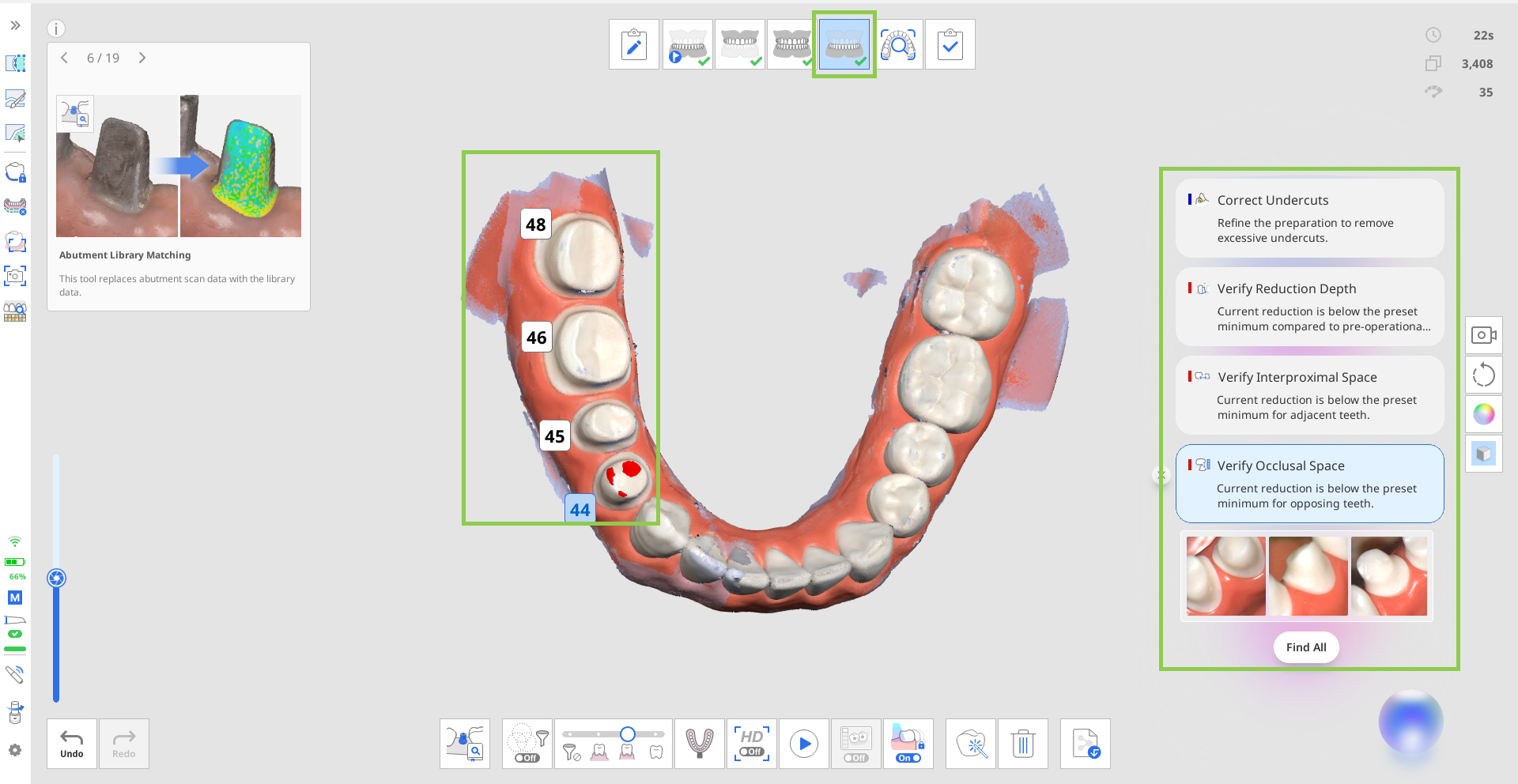
Haz clic en "Buscar todo" para seleccionar todos los dientes preparados y revisar sus resultados a la vez. Como alternativa, haz clic en el número de un diente específico para ver los resultados solo para ese diente.
Tras revisar los datos, puedes eliminar elementos de la lista haciendo clic en el icono de cerrar que aparece junto a cada resultado.
🔎Nota
Los elementos de revisión del escaneo que se muestran en esta etapa no cubren todo el escaneo, sino que se centran en los dientes preparados. Los resultados se muestran en el área que abarca el diente preparado más 1 o 2 dientes adyacentes.
Actualización de los resultados y la configuración de las revisiones
Por defecto, al realizar escaneos adicionales, los datos de escaneo se revisan automáticamente al inicio y al final del escaneo una vez que se ha alcanzado el número mínimo de tomas de captura (100). Los resultados de la revisión también se actualizan cada vez que se modifican los datos del escaneo (por ejemplo, se agregan, recortan u optimizan datos), al entrar en una etapa de escaneo o al transferir datos entre etapas de escaneo.
⚠️Precaución
Si el usuario selecciona manualmente el diente o modifica la línea de margen mediante la función Línea de margen, el resultado puede afectar al funcionamiento de la Inteligencia en tiempo real.
Condiciones y limitaciones de visualización para los elementos de revisión según la configuración
Al ajustar los valores de distancia en Configuración > Análisis de datos de escaneo, los resultados de la revisión de autorización se actualizan de acuerdo con los nuevos criterios. Todos los elementos de acción de revisión relacionados se actualizan en consecuencia.
Cuando la opción "Usar GPU" está desactivada en la configuración, la función "Inteligencia en tiempo real" se desactiva automáticamente y no se puede utilizar.
Cambia el filtrado de escaneo inteligente a Dientes + Encías para mostrar todos los elementos de revisión de datos de escaneo, que no están disponibles cuando el Filtro inteligente de escaneo está desactivado.
Inteligencia en tiempo real en Revisión de escaneo inteligente
Cuando está habilitada, la función Inteligencia en tiempo real afecta la forma en que se genera el informe en la Revisión de escaneo inteligente. En lugar de proporcionar un informe estándar para la etapa de escaneo actual, Inteligencia en tiempo real genera un informe mejorado. Este informe incluye un resumen de todos los elementos de revisión procesables para el caso actual en la esquina inferior derecha.
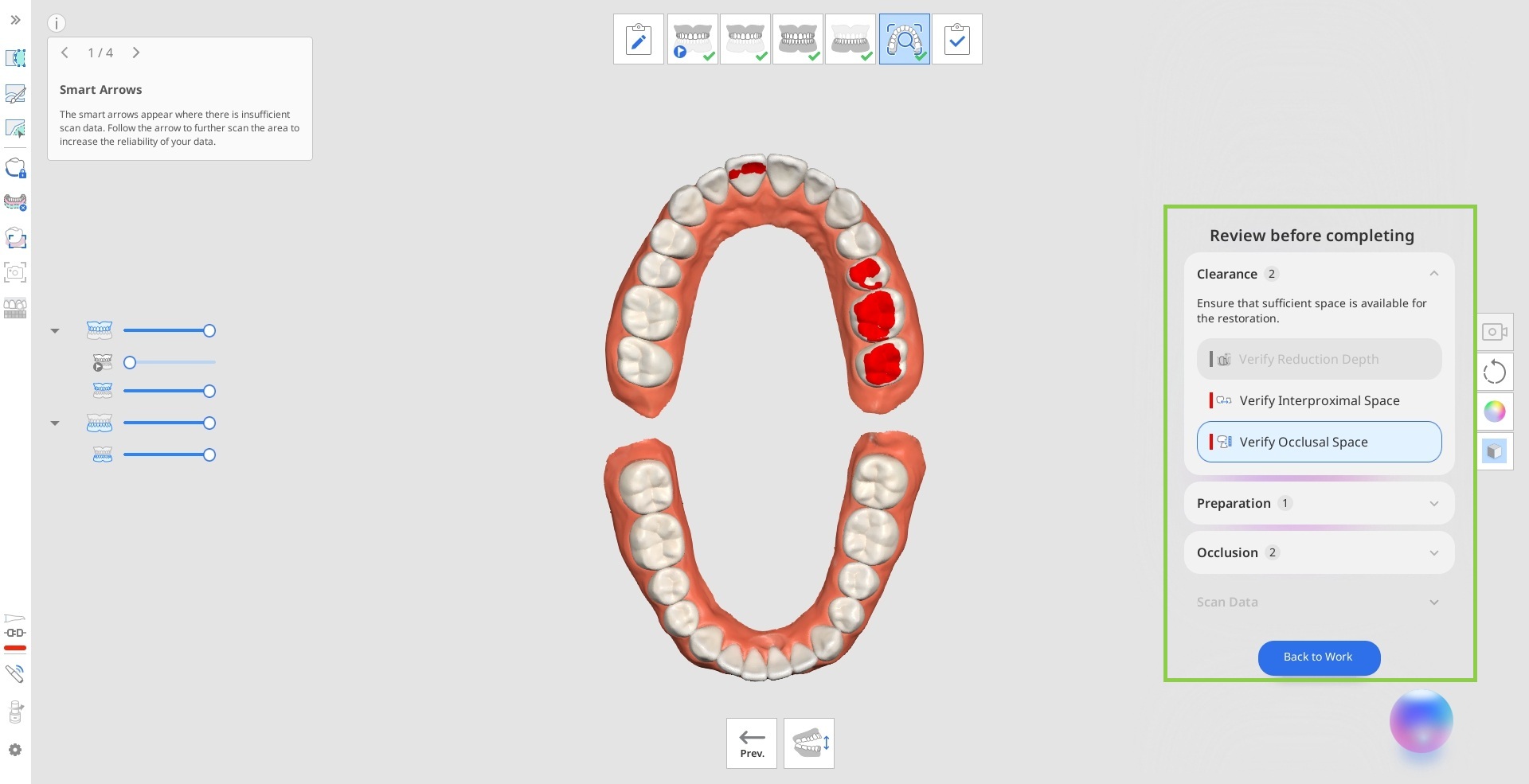
Antes de completar el caso y finalizar los datos del escaneo, revisa los elementos detectados por Inteligencia en tiempo real. Haz clic en "Volver al trabajo" para regresar a la etapa de escaneo correspondiente al elemento de revisión seleccionado actualmente, donde podrás modificar los datos de escaneo si es necesario.