Overview of Case Notes
After running the application from Medit Link, the user is presented with an overview window of all notes associated with the current case - both finalized (or DONE) and not.
🔎Note
It may take a few minutes for the program to load, as the scan data is being converted into a web-compatible format.
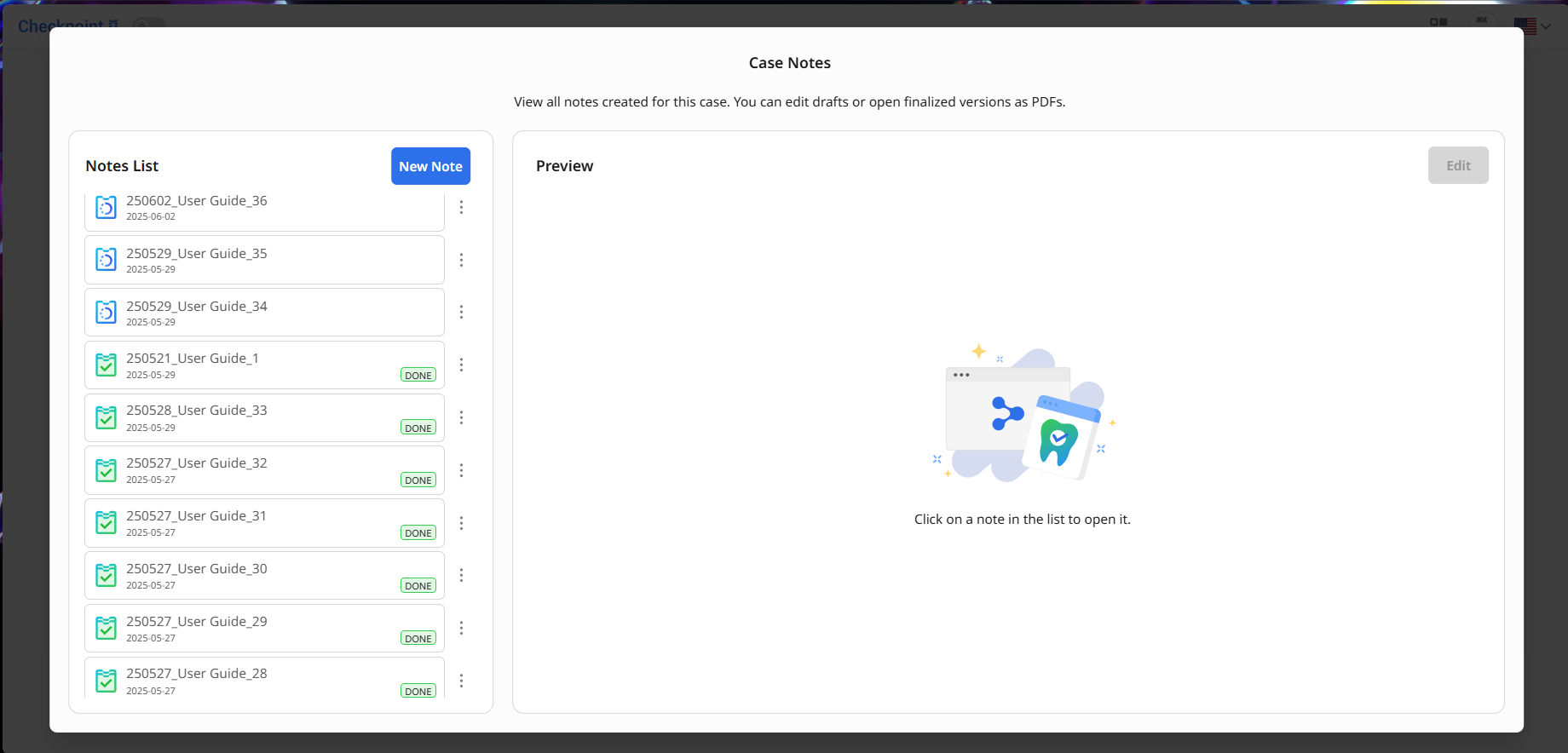
The titles for notes are automatically generated based on their creation date, case name, and a consecutive number. You can preview and manage your case notes from this window.
To delete a note: Click the menu button next to it in the list.
To preview a note: Select it from the list. The content of a draft will appear on the right side. You can continue editing it by clicking the “Edit” button.
If the note has been finalized, it will open as a PDF file, which you can share with the patient or print. Finalized notes are not editable.
To create a new note: Click the “New Note” button.
Creating or Editing Notes
A note is created by listing captures of areas of concern in the Note Panel on the left side of the screen. Up to 50 captures can be added at once.
Start by reviewing your scan data for any areas that may require treatment. You can use the data control buttons in the Toolbox at the bottom of the screen, or navigate using the mouse (read on latter in Data Management chapter). For added convenience, you can also manage data visibility in the Data Tree panel on the right. The Note Panel on the right is also collapsible if needed.
Once you've identified an area that should be included in the note, click the “Capture” tool.(1).png)
Click and drag the control points along the border to adjust the size of the capture area. When you're satisfied, click the “Capture” button to confirm it.
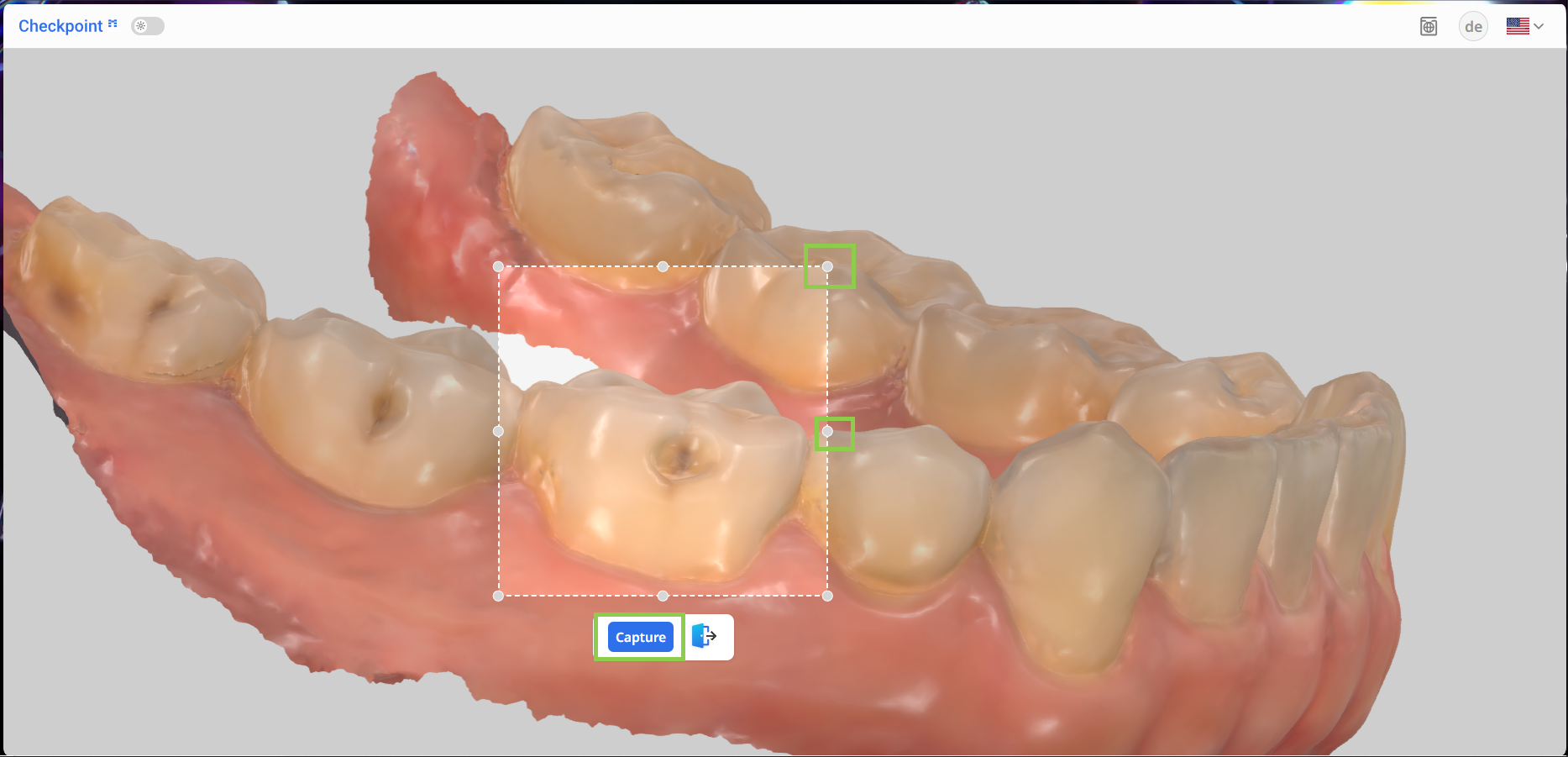
The captured image will appear in the Note Panel on the left. Next, you’ll need to fill out the associated form. Several fields are obligatory, including the tooth number (on the right), diagnosis, and treatment. If you select ‘Other’ for either diagnosis or treatment, a custom entry will be required.
.png)
The form also includes optional fields where you can enter the estimated cost of treatment, the treatment date, and any additional memos.
.png)
Note that if any capture is missing required information, the “Finalize” button will be disabled. Be sure to scroll through the Note Panel to confirm that all forms have been completed; look for captures requiring editing.
.png)
Use the “Show Visual Cues” button to highlight areas (mark them in blue) of the scan data that may need closer review.
.png)
To review which parts of the scan data are included in the summary, use the “Show Noted Areas” button. It visually highlights all captured areas on the scan, making it easier to perform a final check before finalizing the note.
.png)
When done, click “Finalize.“
.png)
Finalizing Notes
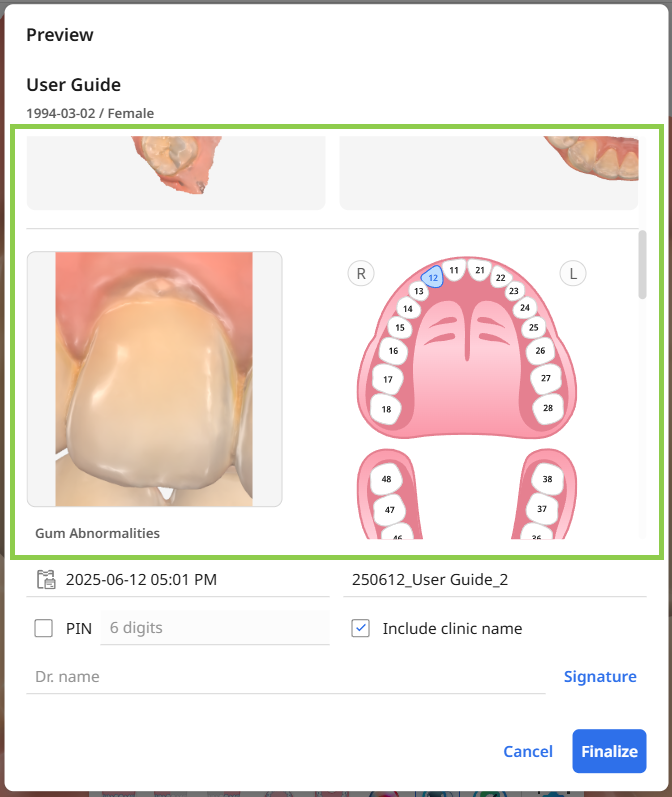
Once the “Finalize” button is clicked, a preview window appears, allowing the user to verify the note’s content and finalize its creation before sharing or exporting it.
Scroll over the imaging to check the input information.
Provide all mandatory details for the final version of the note, including its title, creation date, doctor’s name, and signature. The system generates a default title, but you may modify it.
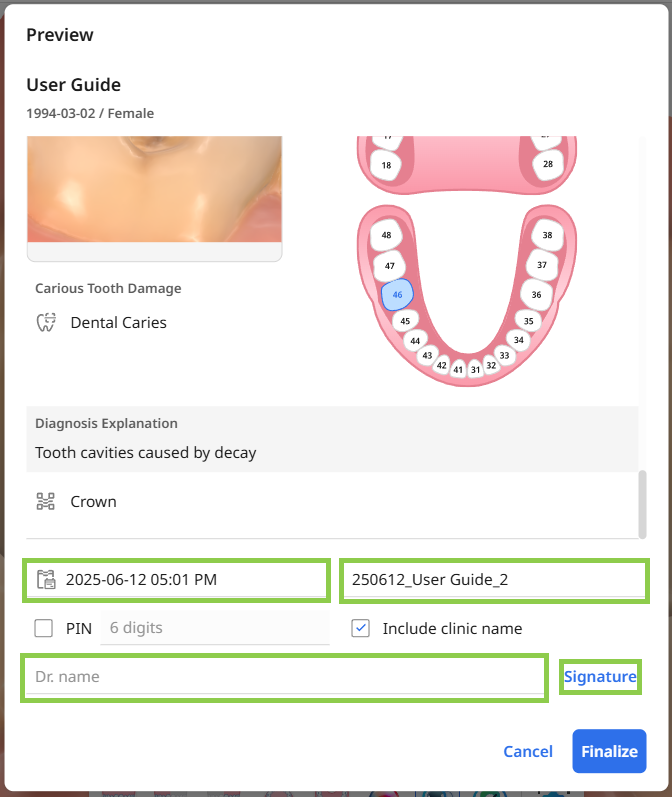
Optionally, you may secure the note with a PIN, which the patient must enter to view its contents. The clinic name is automatically included in the finalized note.
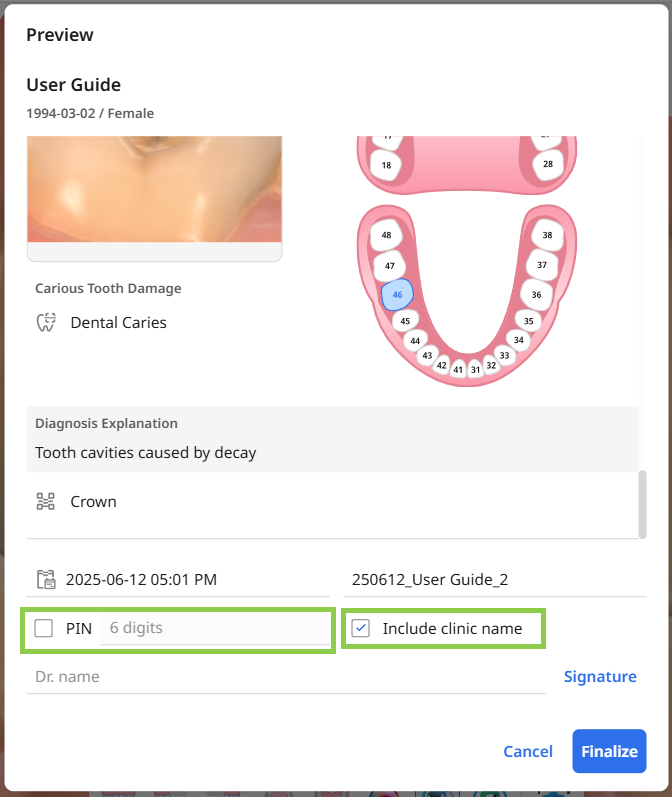
When all sections are ready, confirm finalizing the note by clicking “Finalize.“
⚠️Caution
The final PDF may take several minutes to generate. Make sure to keep the webpage open until the file has been successfully created.
Sharing Finalized Notes
The finalized note will open automatically as a PDF in your browser. You can share it with the patient using a QR code or email. Once you're done, feel free to close the browser or application tab— the PDF is automatically saved to the case.
⚠️Caution
The finalized note is intended for reference purposes only and does not constitute a medical history. For a comprehensive diagnosis and treatment plan, please refer to the official medical records.
