Overview
Medit ClinicCAD is an inclusive dental CAD application designed for both CAD experts and novices. It provides an intuitive workflow for creating restorations while offering advanced customization options. The app simplifies processes with automated one-click design for premolar and molar single crowns, utilizing pre-operative scans and prepared tooth data to ensure precise, patient-specific results. With Medit ClinicCAD, users can design the following restorations:
crown (with screw holes and handles)
bridges (with pontics)
eggshell crown or bridge
coping
veneer
inlay/onlay
cervical inlay
pontic
Product Name | CAD/CAM Software |
Trade Name | Medit ClinicCAD |
Model Name | MA-ACC |
UDI DI | (01)08800026700203 |
UDI PI | (10)1.2.2 |
Basic UDI-DI | 88000267MA-ACC7W |
 Caution
Medit ClinicCAD is a CAD software intended to support the digital modeling of dental restorations using the provided tools; it uses the patient's anthropometric data to generate the output. It does not perform any interpretation or modification of the patient's scanned data; therefore, it does not substitute medical review, advice, or treatment from a trained professional.
Device Functional Benefits
Shorter chair time
Fewer remakes and returns
Higher predictability
Improved patient satisfaction
Performance
Margin Fit Accuracy
Performance objective for margin fit accuracy is set to <100μm, based on state-of-the-art literatureInternal Fit Accuracy
Performance objectives for internal fit accuracy are set to <100μm, based on state-of-the-art literatureMorphological Accuracy (Copy feature)
Performance objectives for morphological accuracy when using the Copy feature are set to <200μm, based on state-of-the-art literature
External Fit Accuracy (Library feature)
Performance objectives for external fit accuracy when using the Library feature are set to <100μm, based on state-of-the-art literature
Intended Use
Medit ClinicCAD is a software developed to allow users to design crowns, bridges, inlays/onlays, cervical inlays, copings, veneers, pontics and eggshell-type restorations based on available intraoral data. It enables users to align the scan data to the occlusal plane, draw margin lines, align tooth library data on the scan, duplicate scan data, design prostheses, and create eggshell-type crowns. Medit ClinicCAD provides tools for digitally designing prostheses for missing teeth. The designed prostheses may also be used for temporary purposes.
Be advised that prostheses designed by individuals who are not trained dental professionals may have detrimental effects on the patient's oral health.
The program must not be used for purposes other than its intended use.
Caution
The Medit ClinicCAD software application does not modify the patient's anthropometric scan data, which remains accessible to healthcare professionals, as depicted through the Medit Scan software's 3D graphical representation tools.
 Note
Note
Medit ClinicCAD has direct integration with a third-party cloud-based printing software (SprintRay's RayWare Cloud). Medit does not assume responsibility for issues related to the functionality, compatibility, or performance of third-party software. For any problems or inquiries related to the third-party software, including but not limited to technical issues, updates, or licensing, please contact the relevant manufacturer.
Indications
This software is used to design dental prosthetics—including crowns, bridges, copings, veneers, inlays/onlays, cervical inlays, eggshells, and pontics—based on 3D oral scan data, for patients considering prosthodontic treatment due to dental defects such as missing teeth or partially missing dentition.
Contraindications
The software cannot be used for purposes other than to create the following:
crown
bridges
coping
veneer
inlay/onlay
cervical inlay
eggshell
pontic
Intended User Profile
Dental professionals such as dentists, dental hygienists, and dental technicians
Intended Patient Population
Patients who require fixed prosthetic treatment due to tooth loss or localized dentition defects (e.g., missing or partial teeth). There is no specific age limit for use, provided that clinically appropriate oral scan data can be obtained and assessed by a qualified clinician.
Clinical evidence for the pediatric population is currently limited. Consequently, the safety and performance of the device in pediatric patients have not been fully established.
Cautions and Disclaimer
Scan data that does not meet the selection criteria (e.g., unclear margins or indistinct preparation features) may reduce AI-based automatic detection and segmentation performance; performance may also be reduced in the primary or mixed dentition or with low-quality scan data. Designs involving large restoration areas (e.g., onlays or fractured teeth) are not supported.
The inlay design results provided by the AI model are intended as reference data that must be reviewed and edited by qualified dental professionals with appropriate clinical training and experience. The AI inlay designs are not final products, and all diagnoses and treatment plans must be confirmed and approved by a dentist.
Due to the nature of the AI model, its predictions may be inaccurate for out-of-distribution cases, rare anatomical structures, or data containing unexpected artifacts. Therefore, the AI-generated outputs should always be reviewed and validated against clinical expertise.
Patient Safety Advisory
Improperly designed restorations (crown, inlay, etc.) can potentially have a detrimental impact on a patient’s dental health and teeth, causing discomfort or other oral issues.
Consequently, though the software can facilitate diagnostic and treatment planning processes, all decisions must be made by a skilled dental professional with a comprehensive understanding of the software’s functionality and data interpretation. There are ample opportunities at each stage of the restoration design process to identify and rectify any inaccuracies or errors that may lead to serious injuries. The dental professional must closely monitor the processes of designing and decision-making.
The final prosthesis is always reviewed and adjusted by a qualified clinician before being applied to the patient, thus lowering the actual clinical risk.
Security Risk Management and Error Handling
After the issue has been improved, if it is necessary to update the program, such as releasing a new installation file or applying some patch files, it is officially distributed through the head office sales/SE personnel, along with the application guide, to the person in charge of the corporation or the issue site.
Responses to security issues may be further announced on the website if necessary.
During the issue handling and recovery process, temporary operational restrictions may occur to ensure system stability and data integrity:
Patient data may be temporarily inaccessible until the recovery process is completed.
Clinical workflows may be interrupted; normal operations will resume once administrative actions have been completed. Patient data will not be automatically deleted during this process.
A warning message will be displayed, and additional data entry will be restricted until the issue is resolved.
User sessions may be automatically logged out to prevent unauthorized access.
Security Response Procedure
Reporting security issues
Share initial analysis results and progress
Issue delivery
Issue response plan / delivery
Issue response plan / share results
System Requirements
Windows
CPU | Intel Core i5 2.6 GHz or higher |
RAM | 16 GB or higher |
Graphics Card | NVIDIA GeForce GTX 1060 (2 GB) or higher |
OS | Windows 10 64-bit, Windows 11 64-bit |
macOS
CPU | 8-core or higher |
RAM | 16 GB or higher |
Chip | M1/M2 or higher |
OS | Sonoma 14 or later |
Network Requirements
Network Type: wired LAN or Wi-Fi (WPA2 or higher)
Bandwidth: minimum 100 Mbps (1Gbps recommended)
Protocol: IPv4
Port: TCP 443
Latency: average below 50ms
Security Requirements
Authentication: Password must be 8-16 characters long, including a combination of at least three of the following: letters, numbers, and special characters. Passwords are accepted in English only.
Encryption: TLS 1.2 or higher, HTTPS transmission
Antivirus & Patches: keep the operating system and antivirus up to date
This software continuously monitors for security events such as unauthorized access, tampering attempts, and data integrity errors.
Unauthorized Access Prevention:
Only individuals who have been granted Admin account privileges in Medit Link can access patient information and internal servers. During the registration process, each user is assigned account permissions to manage and prevent unauthorized access.
Cybersecurity Information
ClinicCAD does not access any patient PII/PHI from Medit Link. In this system, the communication and API exchanges use scan data files identified only by the patient’s Case ID rather than any PII/PHI.
Preparations and Handling Before/During Device Use
Product installation procedure: managed via the Cloud
Mandatory user validation when creating Medit Link Account:
Create a user account in Medit Link
Send a user validation email
User confirms the validation
User logs in
Troubleshooting guide: https://support.medit.com/hc/en-us
Required Facilities, Training, and User Qualifications
Local network administrators/operators must have IT expertise (network, server, OS security configuration).
Cloud services are managed on AWS by Medit administrators (AWS certified).
Information to Verify Proper Installation and Safe Operation
ClinicCAD Updates
Update through the App Box in Medit Link. (The latest ClinicCAD installer file will be downloaded and installed.)
Run ClinicCAD to check the installed version.
If security-related updates are required, install the updated ClinicCAD version in the same way.
Cloud Services: Managed and monitored through AWS Trusted Advisor with regular updates to apply required security measures.
Data and Settings Backup/Restore
Data is managed locally via Medit Link and backed up to the Cloud.
Backups/restores can be performed by downloading data as needed.
Original IOSC files are retained for up to 6 months only.
User logs are retained for 3 months and can be manually deleted.
Stored data can be deleted from the Case Box in Medit Link, and the responsibility for such deletion rests with the user who performs it.
Cases can be transferred using the Case Converting Tool in the Settings menu of Medit Link.
When a user account is deleted, all user data (e.g., personal information, usage logs such as log-in and feature usage) and database data are permanently removed and cannot be restored.
Integrity and Verification of Software Security Patches
The executable file of ClinicCAD is automatically digitally signed during installation and verification, so users do not need to take any additional action.
IT Network Precautions
Guidelines
Execution of the health software on an IT-network could result in previously unidentified risks to patients, users, or third parties. The responsible organization is advised to identify, analyze, evaluate, and control these risks.
Hazard Situations
Always ensure that your system is protected by the latest version of antivirus software and an active firewall.
Connecting the network to any device other than Medit ClinicCAD may result in potential virus infections or data tampering. Verify that the network is operating under appropriate administrative control before proceeding.
Even if automatic backup is configured, no backup will be performed if the software is not running or if the designated backup location is unavailable.
Subsequent changes to the IT network could introduce new risks and may require additional analysis. Such changes include:
Modifications to the IT network configuration.
Adding items (hardware, software platforms, or software applications) to the IT network.
Removing items from the IT network.
Updating software applications on the IT network.
Upgrading software platforms or software applications on the IT network
In the event of a cybersecurity incident, if the cybersecurity detection software identifies a threat, the user must report it to the manufacturer and to the competent authority of the Member State.
Installation Guide
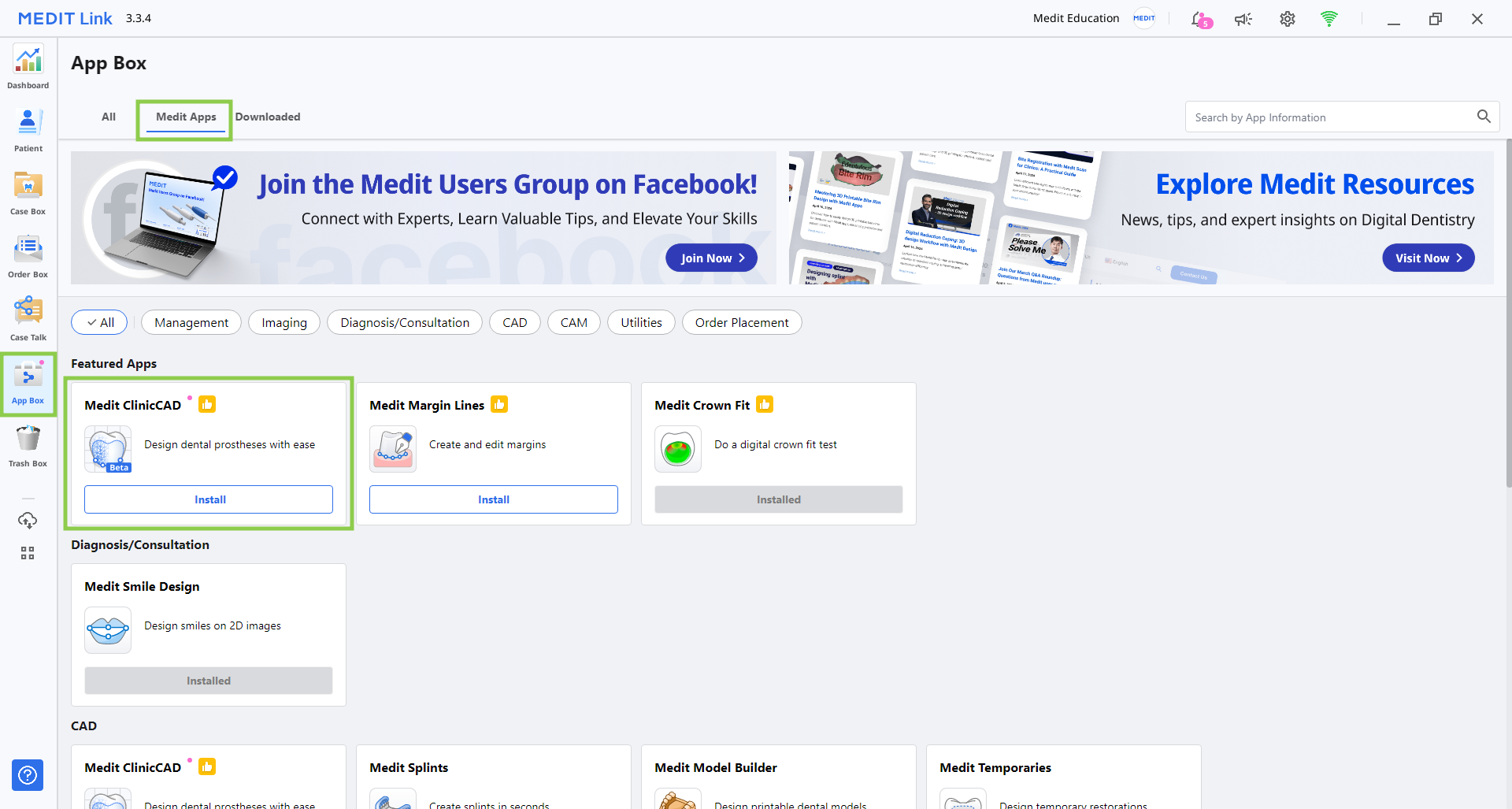
1. Log in to your Medit Link account and go to the App Box on the left-hand menu.
2. In the Medit Apps tab, find the Medit ClinicCAD app and click "Install."
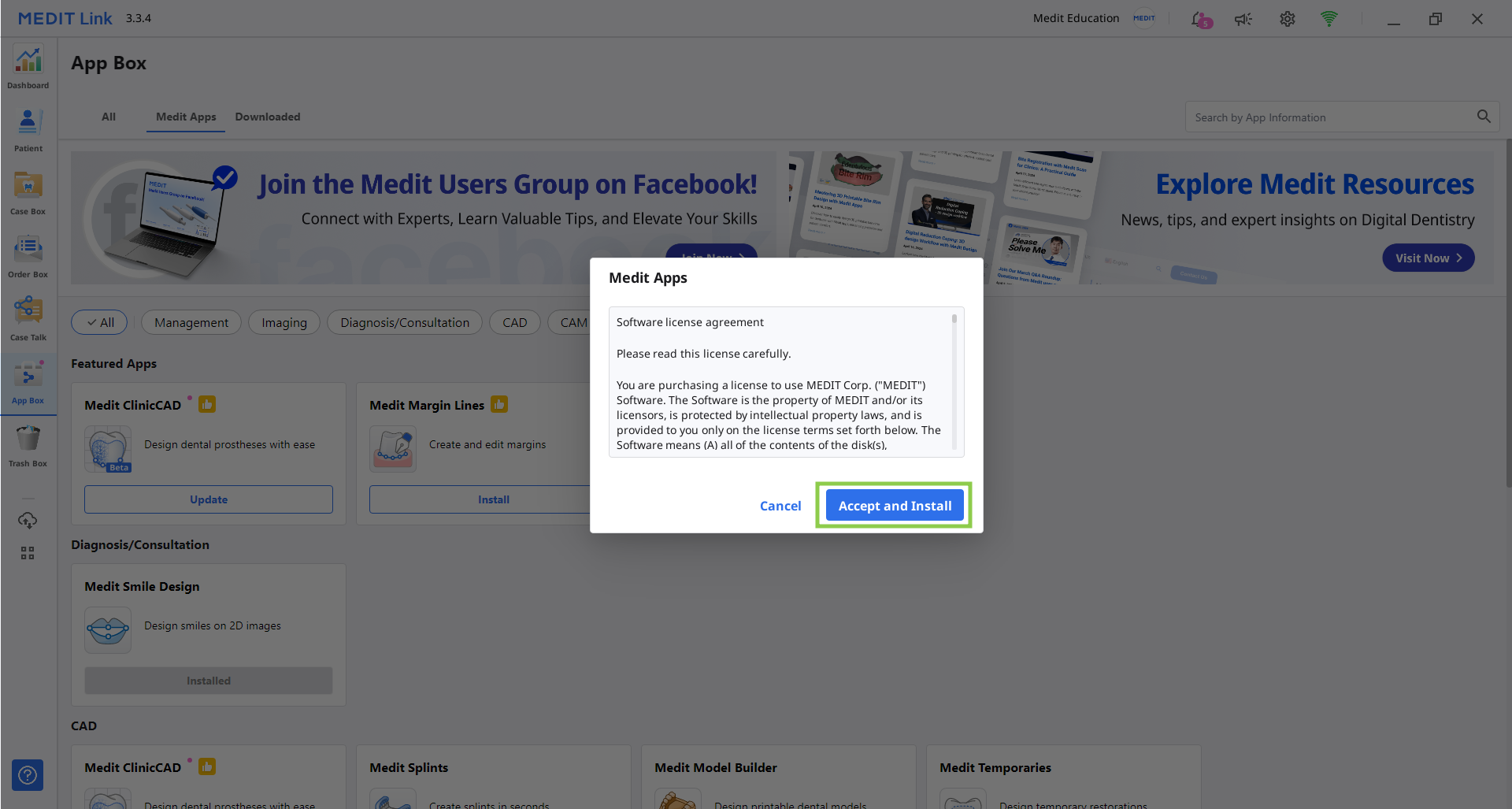
3. Read the Software License Agreement and confirm app installation by clicking "Accept and Install."
4. The app will be downloaded and installed automatically. It may take several minutes to finish the installation process.
Caution
Do not turn off the PC or close Medit Link during the installation process.
5. Once the app is installed, you can run it from any case in Medit Link by clicking the app icon in the top right corner of the Case Detail window.

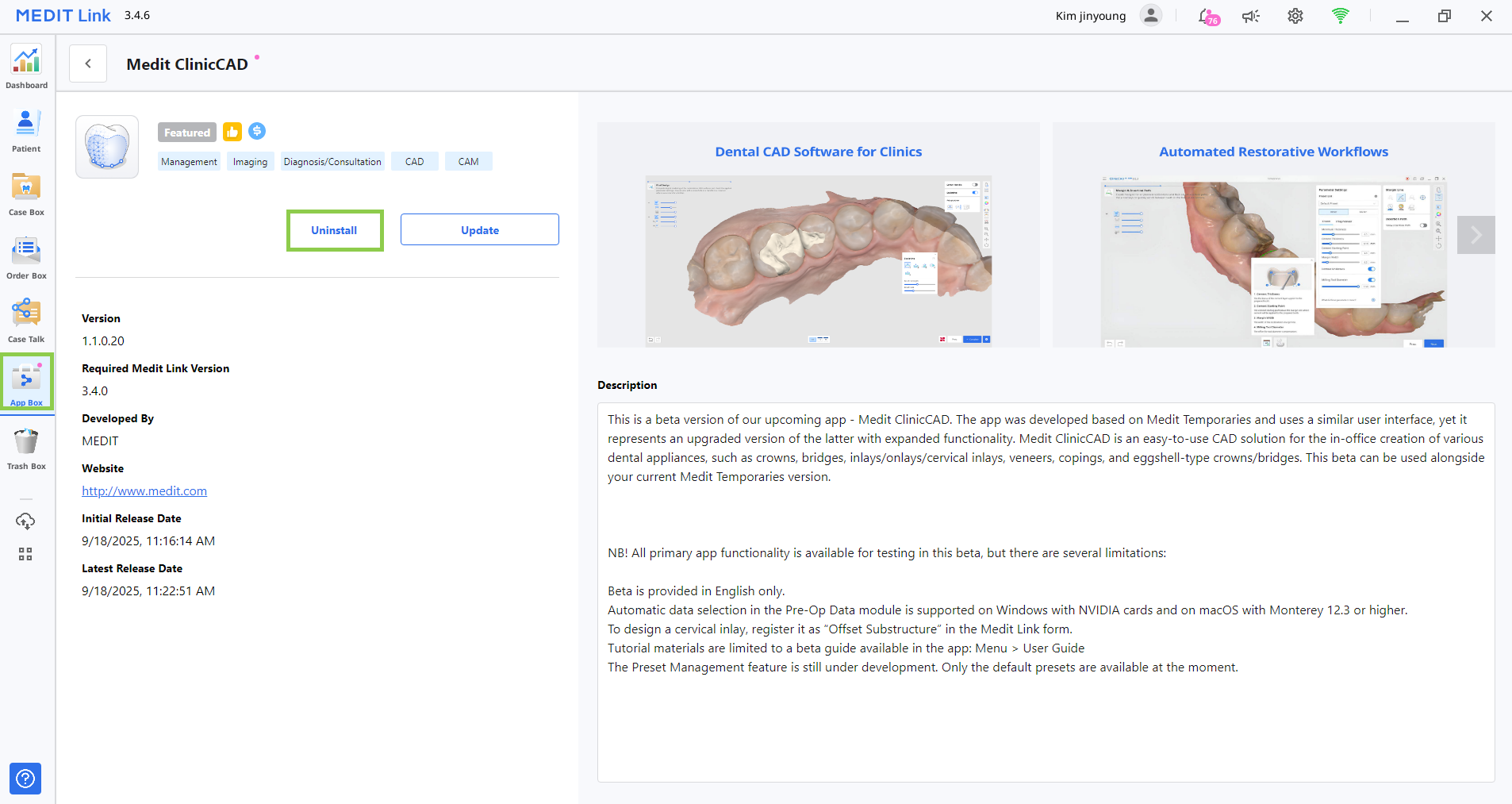
To uninstall the program, open App Box and locate the Medit ClinicCAD app. Select the app card to open its details page, then click “Uninstall.”