Preparing Data
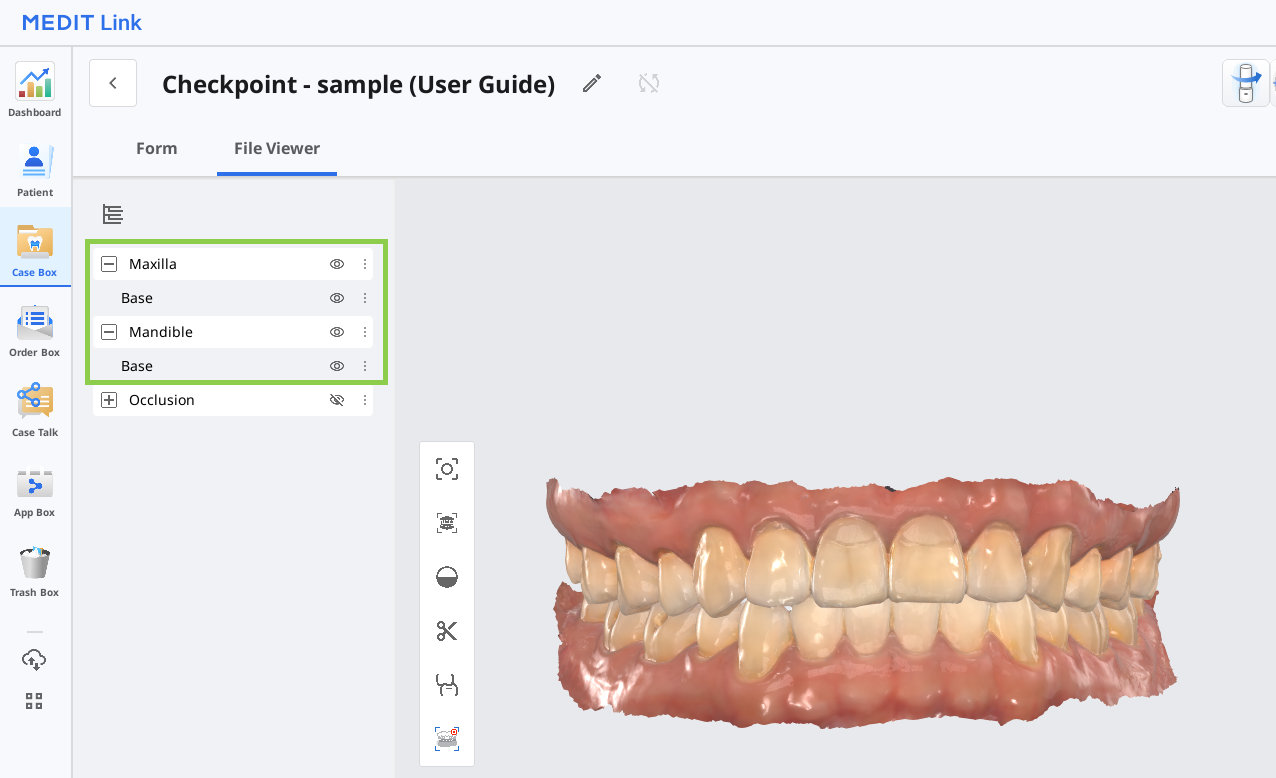
Medit Checkpoint uses scan data from the Medit Link case, which is automatically converted into a web-compatible format. Before launching the application, the user must ensure that scan data is available under the “Maxilla” and “Mandible” tabs in the Data Tree.
To obtain the required data, the user should complete the scanning process using Medit’s scanning software. Once the scan is finished, the data will be automatically saved to the corresponding case in Medit Link.
🔎Note
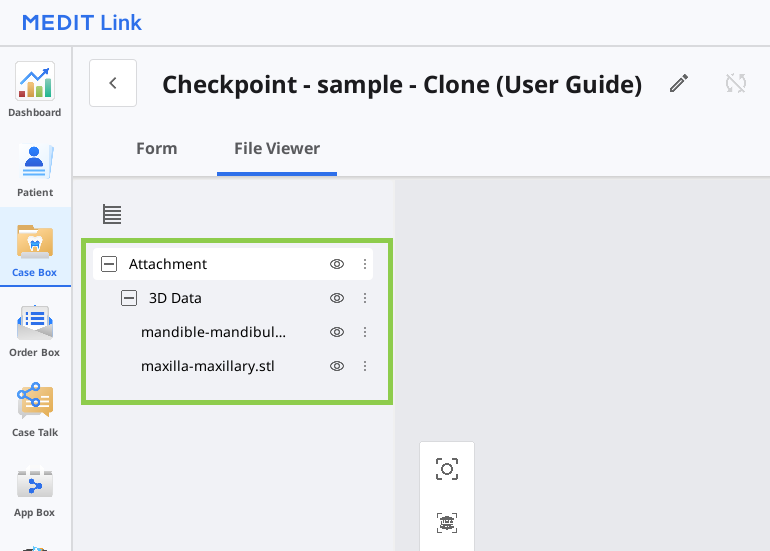
It is not possible to use cases with pre-attached data or to import data after the program has been launched.
3D Data Control
Users can control the 3D data using a mouse alone or both mouse and keyboard.
3D data control using a mouse (based on Windows)
🔎Note
The use may differ depending on the settings of your browser.
Zoom | Scroll the mouse wheel. |
|
Zoom Focus | Double-click on the data. |
|
Zoom Fit | Double-click on the background |
|
Rotate | Right-click and drag. |
|
Pan | Hold both buttons (or wheel) and drag. |
|


3D data control using a mouse and keyboard
Windows | macOS | |
Zoom |
|
|
Rotate |
|
|
Pan |
|
|
.png)
.png)
.png)
.png)
.png)
.png)
Saving Finalized Notes
Once a note is finalized, it is automatically converted to a PDF and saved to the corresponding case. Please note that finalized notes are not editable.
Finalized notes can be accessed and managed either through their corresponding Medit Link cases or by launching the app from the associated case. Draft notes, however, are only available within the program and cannot be accessed externally.
in Medit Link | within App |
|---|---|
|
|
.png) *You may need to refresh the Case Detail page to see the newly created notes.
*You may need to refresh the Case Detail page to see the newly created notes..png)
⚠️Caution
The finalized notes are intended for reference purposes only and do not constitute a medical history. For a comprehensive diagnosis and treatment plan, please refer to the official medical records.